When the PC slows down, the fan spins hard, a strange tray icon appears, or a window will not close, the cause is often a running process. Task Manager can end processes, but everyday troubleshooting—checking digital signatures, filtering by CPU or memory, mapping a window back to an executable, or blocking a program from starting again—usually needs more.
Process Manager in Windows Manager combines a process tree or list, signature cues, high-usage highlighting, filters and batch terminate, a blocklist, Window Finder, process details, and a bottom Process Logger that tracks start and exit. Whether you are hunting high CPU, cleaning unsigned programs, or finding which .exe owns a window, you can do it here.
Below: how to open the module, color meanings, terminate and block, Details, Window Finder, Filter, Process Logger, and precautions.
1. What can Process Manager do?
- Live process view. Tree or list mode with name, description, CPU, memory, path, company, digital signer, and more; the status bar shows totals and overall CPU/memory.
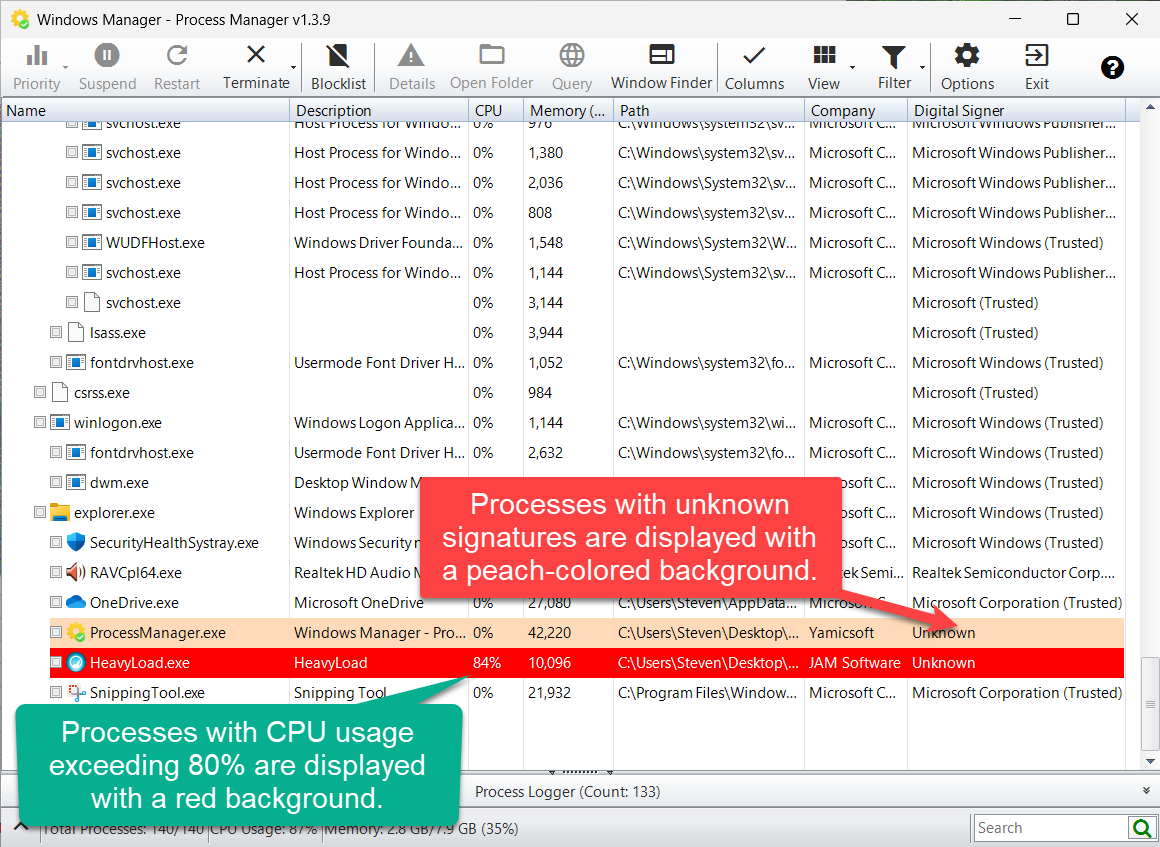
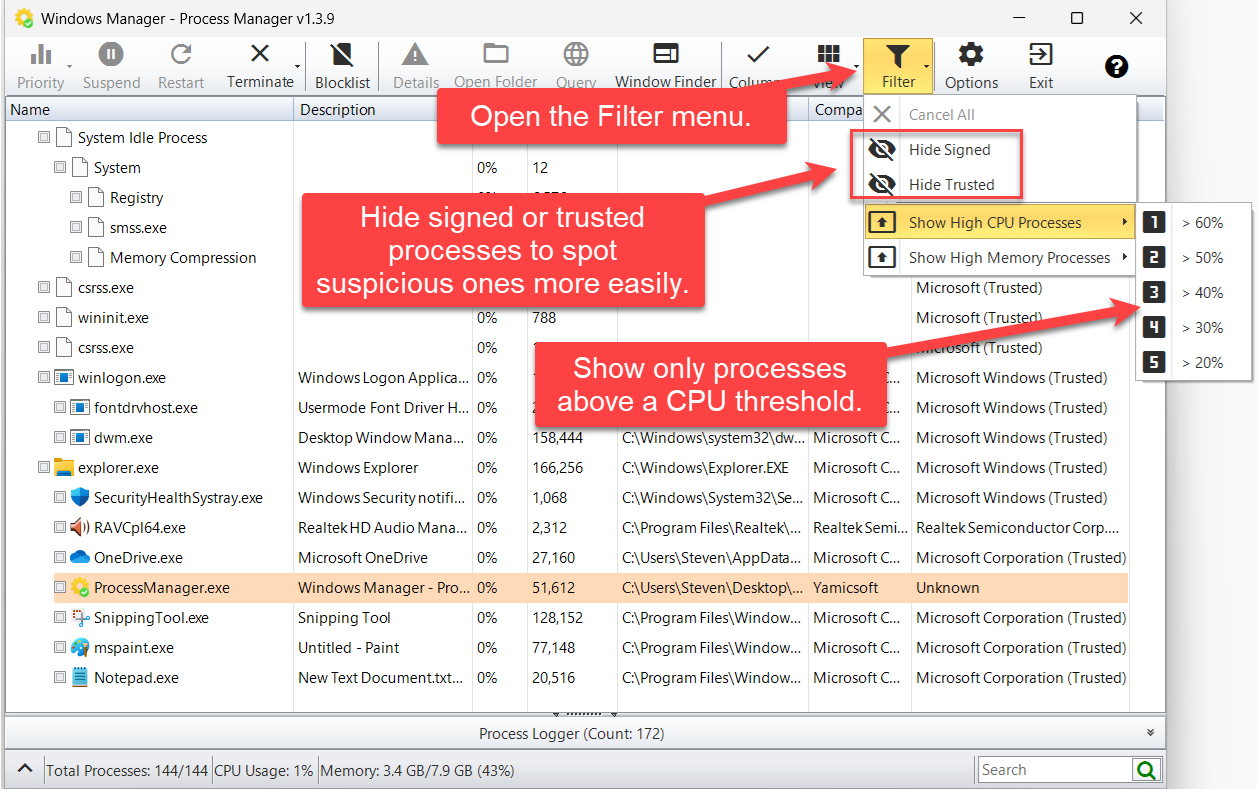
- Spot risks and bottlenecks. Unsigned/unknown processes use a peach background; CPU over 80% uses red. Filters can hide signed/trusted items or show only high CPU or high memory processes.
- Control processes. Set priority, suspend/resume, restart, terminate selected items; batch-terminate high CPU, high memory, all unsigned, or all untrusted; Terminate Selected and Block helps stop malware that keeps returning.
- Dig deeper. Details include descriptions, hosted services, modules/threads/file info; query online, open the folder, jump to Service Manager or Startup Manager.
- Window to process. Window Finder: drag the icon onto any window to see file path and PID, then Goto Process.
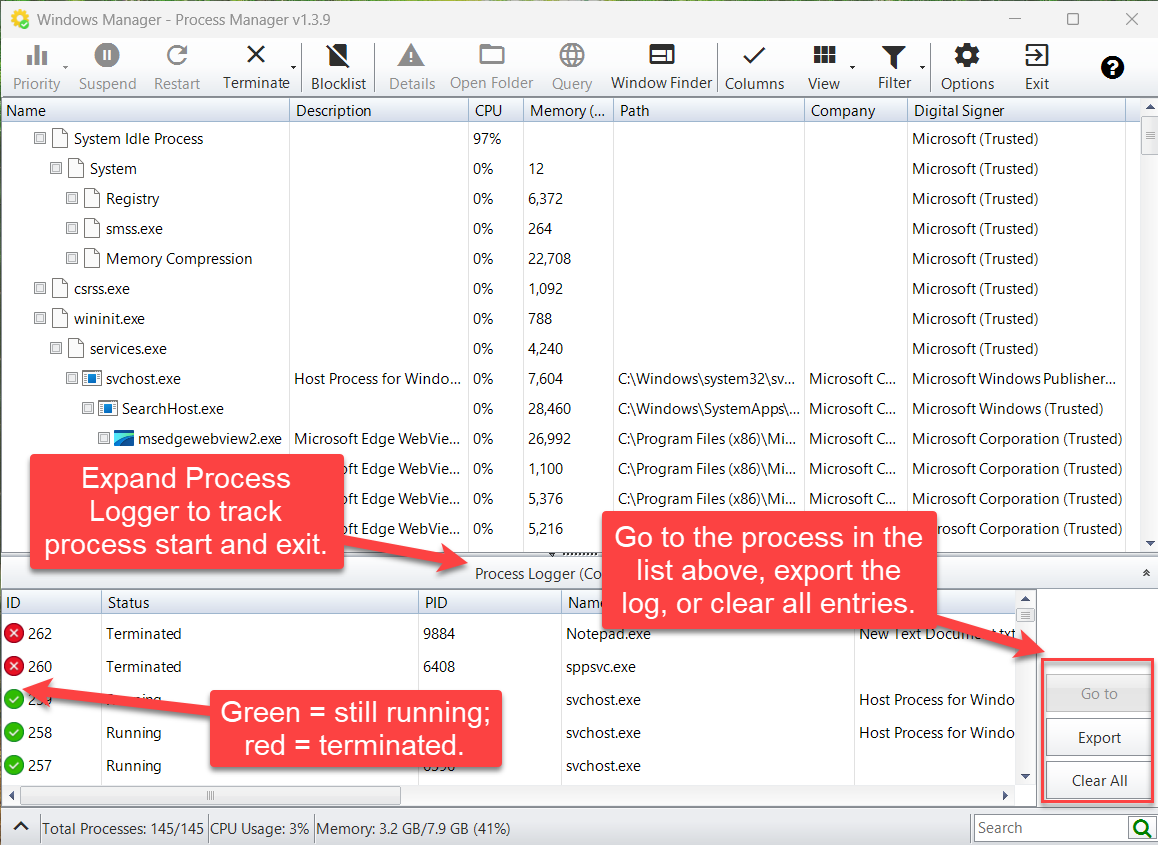
- Start/exit history. Process Logger records Running / Terminated; Go to, Export, or Clear All.
It complements Startup Manager and Task Scheduler Manager: Process Manager focuses on what is running right now.
2. How to open Process Manager
In the Windows Manager main window:
Misc. Utilities → Process Manager
It opens as a separate window. Download a trial from the download page if needed. Use Run as administrator when managing protected system processes.
3. Main window and color meanings
- Toolbar: Priority, Suspend, Restart, Terminate, Blocklist, Details, Open Folder, Query, Window Finder, Columns, View, Filter, Options, Exit; ? for a short tip and online help.
- Process list: Tree mode shows parent/child; list mode is easier to sort. Check multiple processes for batch terminate.
- Process Logger: Expand or collapse at the bottom (see below).
- Status bar: Counts and overall CPU/memory; search box on the right.
- Peach background: Unknown / unsigned digital signer—useful for spotting unfamiliar programs.
- Red background: CPU usage over 80%—useful for finding what is slowing the PC.
Right-click a column header to show or hide columns. A higher System Idle Process CPU % usually means more free CPU capacity.
4. Terminate and Blocklist
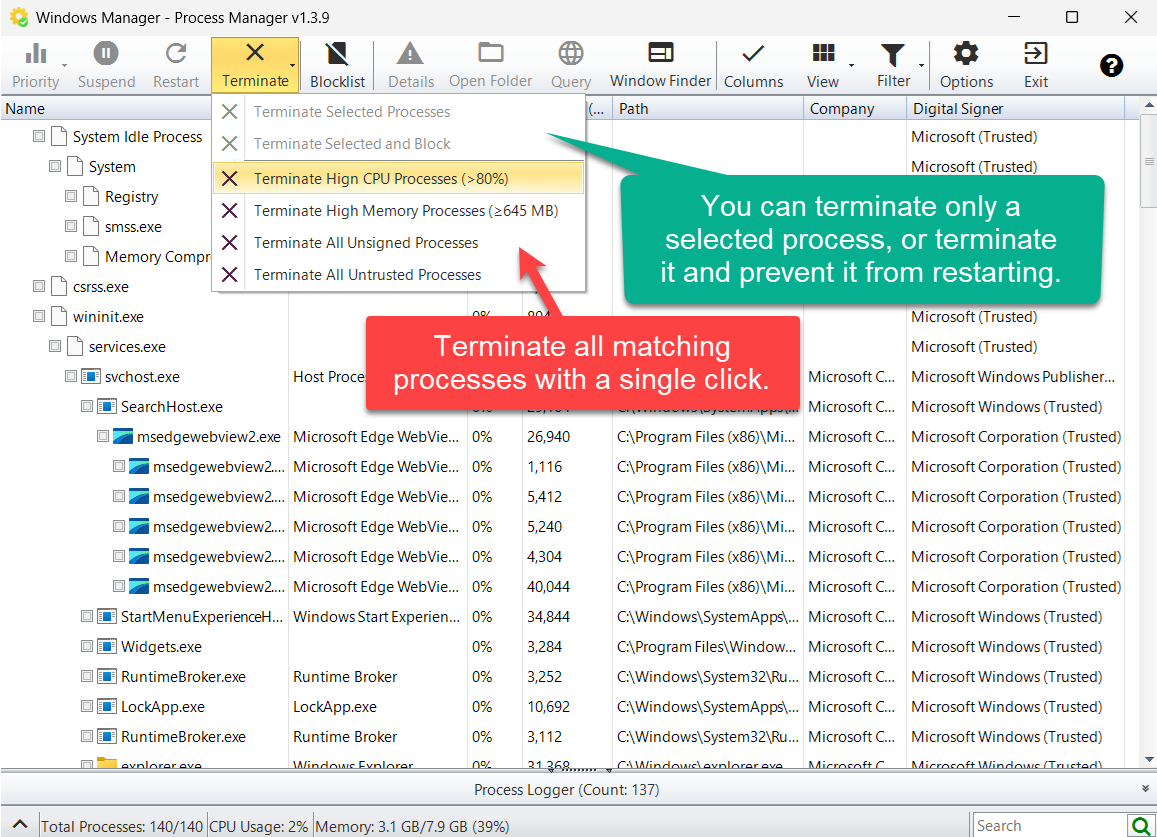
The Terminate menu has two groups:
- Selected: Terminate Selected Processes, or Terminate Selected and Block so the program cannot start again.
- By condition: Terminate high CPU (>80%), high memory, all unsigned, or all untrusted processes in one click.
Select one or more processes first so the “selected” commands are enabled. Review the list before batch operations.
Toolbar Blocklist lets you view, add, or remove blocked paths—together with Terminate and Block, that closes the loop.
5. Details
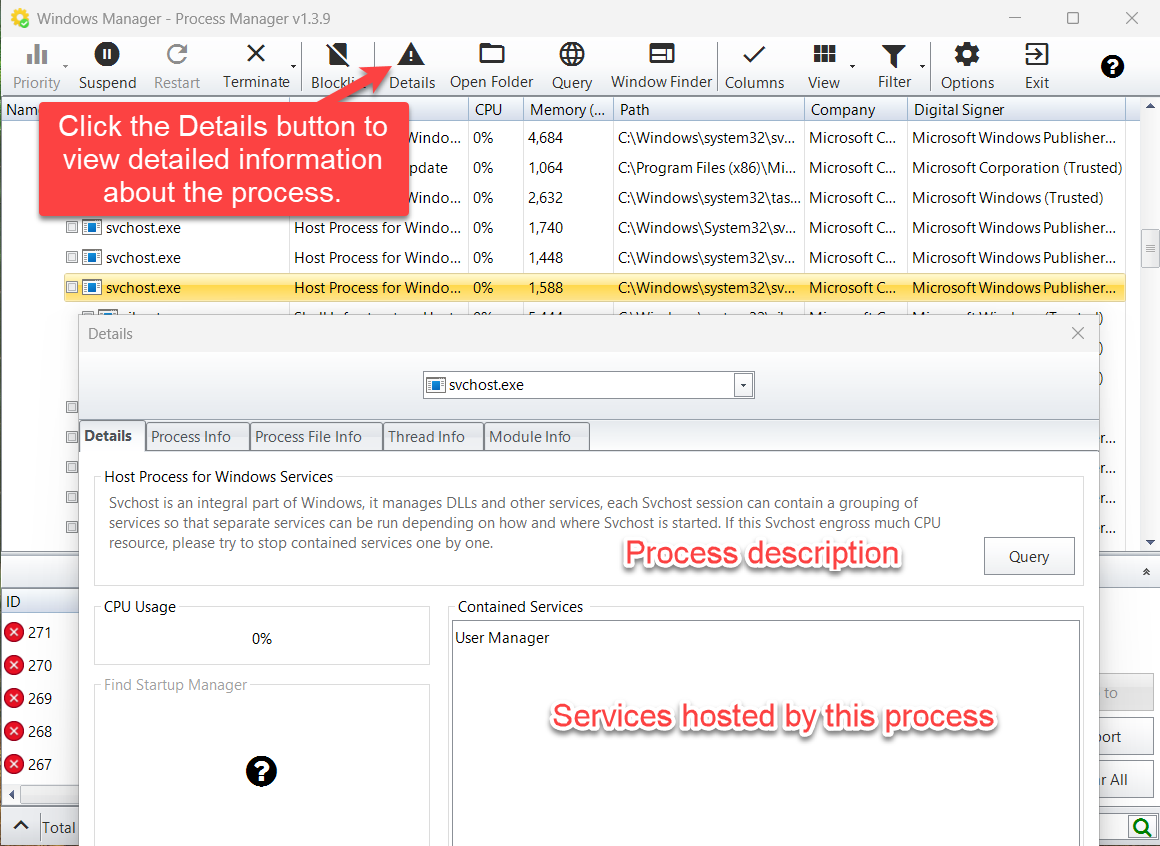
Select a process and click Details to see:
- Descriptions for common processes
- CPU usage; for hosts like
svchost.exe, Contained Services - Tabs: Process Info, Process File Info, Thread Info, Module Info
- Verify signature, query online, go to file; links to Service Manager or Startup Manager
If a svchost instance is heavy, check Contained Services instead of killing the whole host blindly.
6. Window Finder
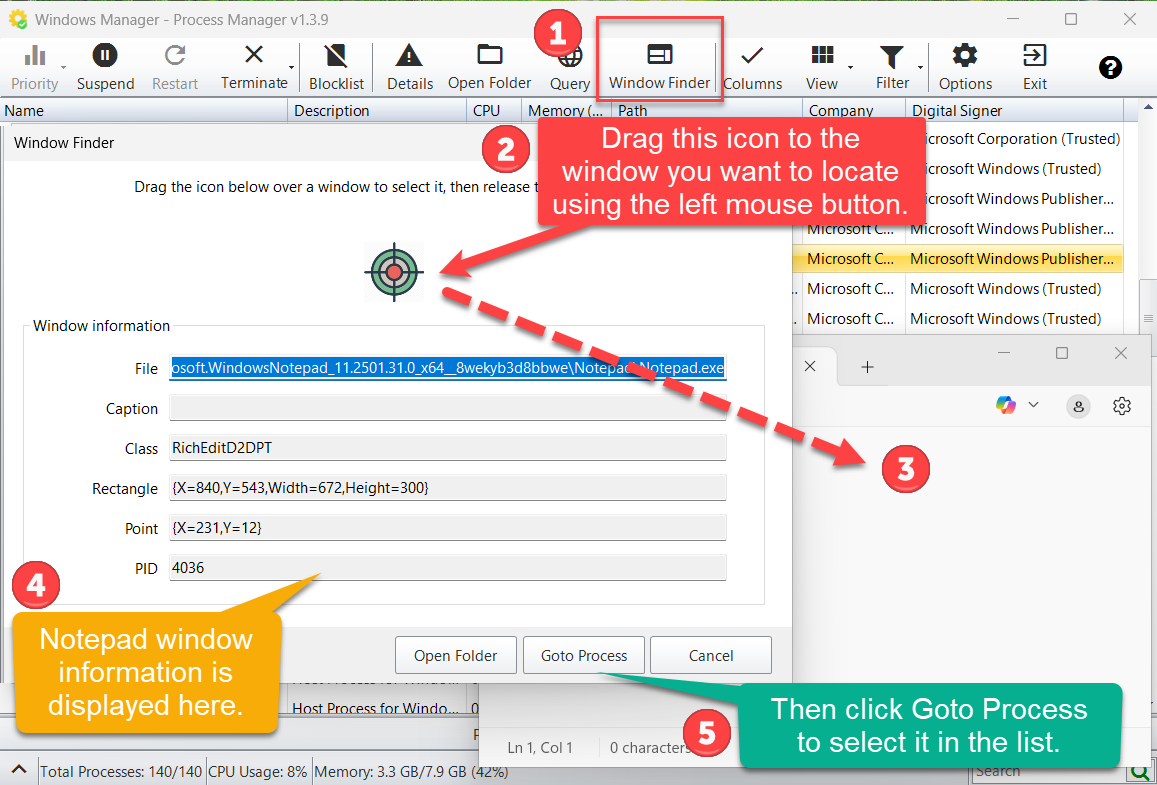
- Click Window Finder on the toolbar.
- Drag the icon onto the target window and release.
- Read file path, caption, class, PID under Window information.
- Click Goto Process (or Open Folder).
7. Filter
- Hide Signed / Hide Trusted: Remove many legitimate processes to spot unknowns.
- Show High CPU Processes: Keep only processes above a threshold (e.g. >60%, >40%).
- Show High Memory Processes: Filter by private memory thresholds.
- Cancel All: Restore the full list.
Ensure the CPU/memory columns are visible when using those filters (Columns or column-header menu).
8. Process Logger
Expand Process Logger at the bottom to record starts and exits:
- Green / Running: Still running.
- Red / Terminated: Has exited.
- Go to / Export / Clear All on the right.
9. Other common actions
- Priority — change scheduling priority (careful with system processes).
- Suspend / Resume — pause a process to free CPU; some system processes cannot be suspended.
- Restart — end and start the process again.
- Open Folder / Query — locate the file or search the name online.
- View — tree mode vs list mode; Columns — show/hide fields; Options — e.g. minimize to tray.
10. Important notes
- Do not end critical system processes (
csrss.exe,winlogon.exe,services.exe, etc.) casually. - Unsigned ≠ malware. Peach is a hint—check path, company, and behavior.
- Review before batch terminate (especially “all unsigned”).
- Blocklist prevents relaunch—remove mistaken entries from Blocklist.
- Administrator rights may be required.
- Red high-CPU rows are dynamic as usage changes.
11. Typical workflow
- Misc. Utilities → Process Manager; look for red or peach rows.
- Use Filter to hide trusted items or show high CPU.
- Open Details / Query; use Window Finder if needed.
- Terminate, or Terminate and Block if it returns.
- Expand Process Logger to see new starts; export if useful.
Try it now
Process Manager sits with Startup Manager and Task Scheduler Manager in the Windows Manager toolbox. More on the product page.
Get started: Download Windows Manager — open Misc. Utilities → Process Manager.
