Besides startup programs, Windows uses the Task Scheduler to run many background jobs at logon, idle time, on a schedule, or when events occur—customer experience data, disk defragmentation, search indexing, error reporting, Windows Update, and more. Many of these are optional for home users yet still use disk I/O, network, or make the PC busy for no clear reason.
Task Scheduler Manager in Windows Manager lists scheduled tasks in a folder tree so you can review path, status, triggers, and last/next run times; enable or disable tasks; run or stop them; and delete tasks or empty folders. The toolbar Optimize Task command offers a checklist of common “safe to turn off” system tasks so you can disable them in one place and improve overall performance.
Below: what the module does, the main window, everyday controls, Optimize Task, and precautions when disabling system tasks.
1. What can Task Scheduler Manager do?
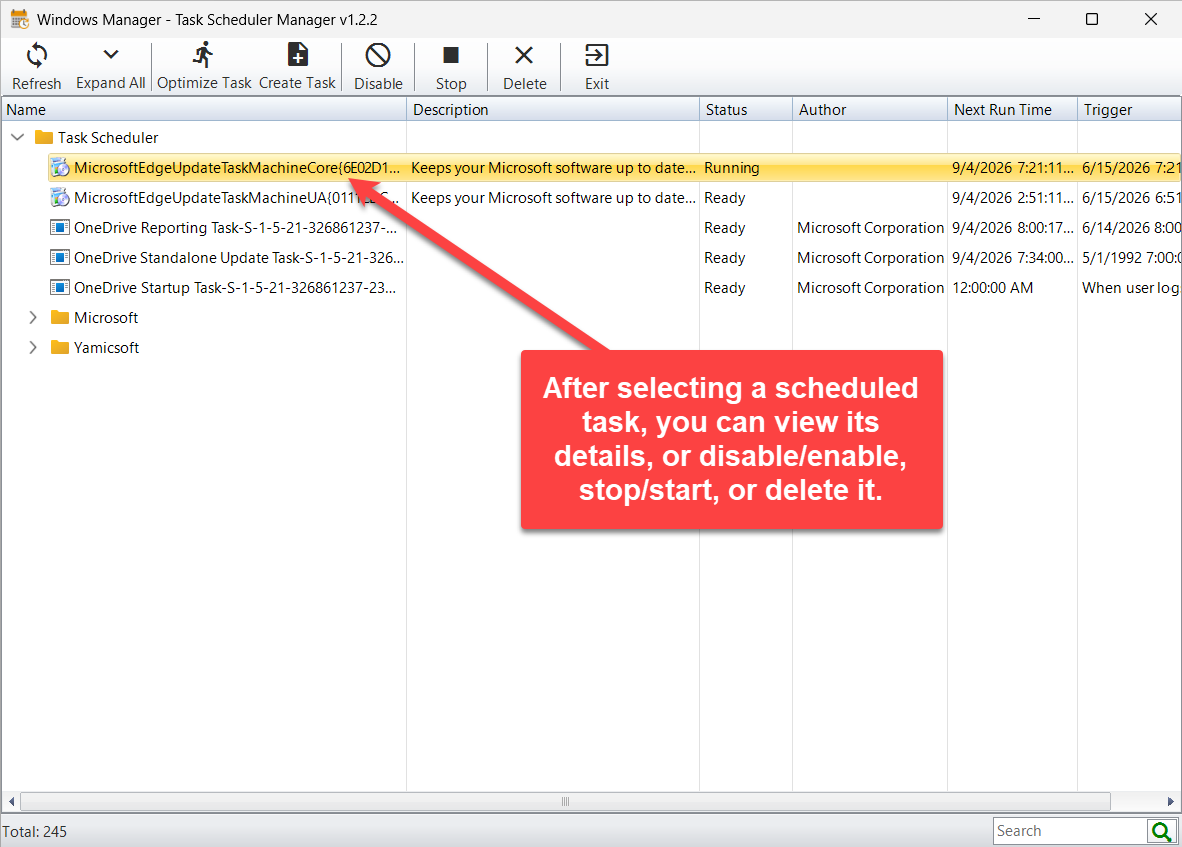
- Central view. Shows all scheduled tasks in a folder tree with columns such as name, image path, arguments, description, status, author, path, last/next run time, and trigger; hover for full tooltips.
- Enable, disable, run. Enable or disable the selected task; run it immediately or stop a running task.
- Clean invalid items. Tasks whose target program no longer exists show as Unavailable and can be deleted; other Windows Manager tools can also call this module to remove invalid tasks automatically.
- Optimize Task. Tick scenario-based options (for example “I don’t want to send experience data to Microsoft”) to disable matching system tasks safely.
- Create Task. Opens My Task so you can create scheduled or monitoring tasks with a guided UI.
It complements Startup Manager (programs at logon) and Service Manager (Windows services): scheduled tasks are jobs that run on a timer or condition, not necessarily at every login.
2. How to open Task Scheduler Manager
In the Windows Manager main window:
Optimizer → Task Scheduler Manager
It opens as a separate window. The program tries to ensure the Task Scheduler service is running; if the service cannot start, you see an error and cannot manage tasks. Download a trial from the download page if needed.
Other entry points: Optimization Wizard, links from Startup Manager, and 1-Click Cleaner (delete invalid scheduled tasks) may also launch this module.
3. Main window
Three main areas:
- Toolbar: Refresh, Expand All, Optimize Task, Create Task, Enable/Disable, Run/Stop, Delete, Exit; ? at the top right for a short tip and online help.
- Task tree: Tasks organized by folder. Folder and task nodes differ; task rows show status (ready, running, disabled, unavailable, and so on). Disabled tasks usually appear in a gray style.
- Status bar: Total task count; search box on the right to filter the list.
Right-click a column header to hide columns you don’t need (except Name). Column widths and window position are remembered. Some columns (such as image path, arguments, path, last run time) are hidden by default and can be shown again when needed.
4. Toolbar actions
- Refresh (F5): Re-enumerate all tasks after changes in this or another program.
- Expand All: Expand or collapse the whole tree.
- Enable / Disable: Toggle the selected task. Disabled tasks do not run on schedule; enable again when needed—no need to delete.
- Run / Stop: Run the selected task now, or stop a running one. Disabled tasks generally cannot run.
- Delete: Delete the selected task, or an empty task folder. Confirm the name and path before you proceed.
The same actions are available from the node context menu. When a folder is selected, Enable/Run are usually unavailable; only empty folders can be deleted.
5. Optimize Task
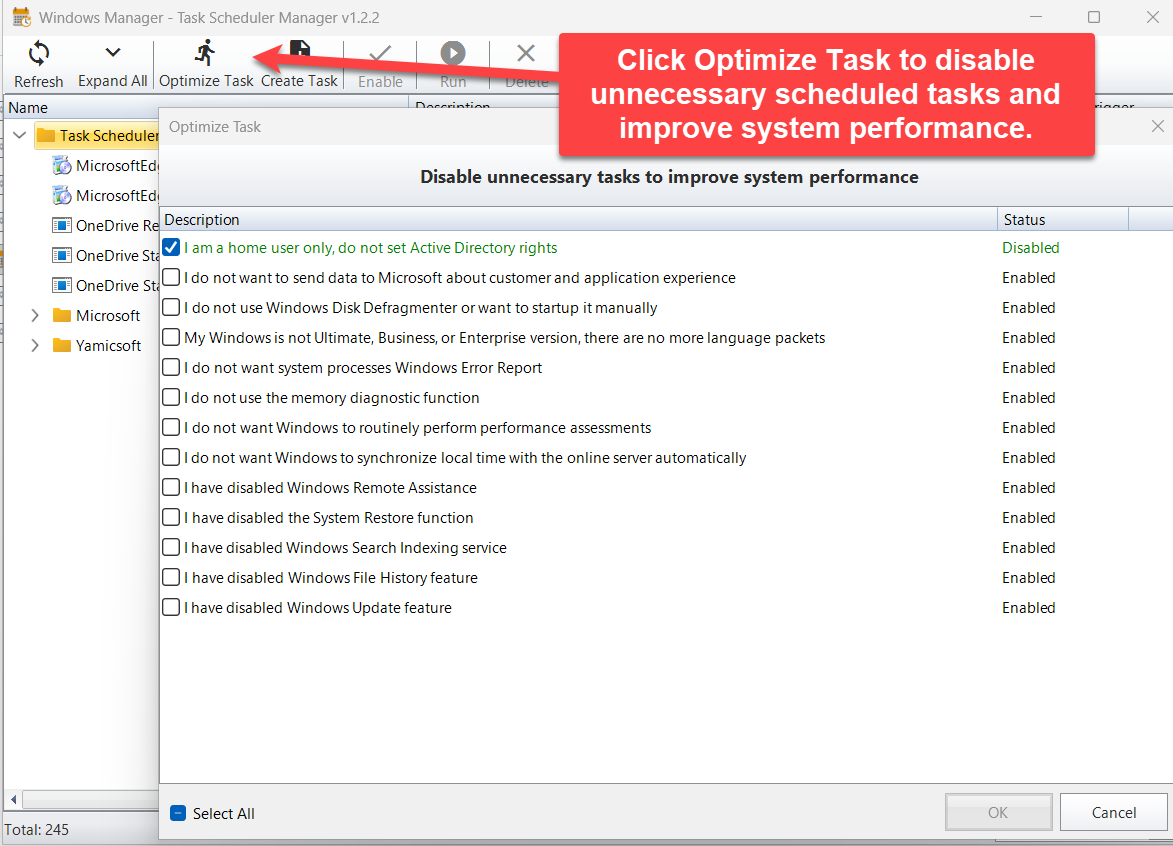
Click Optimize Task on the toolbar. The dialog title explains the goal: Disable unnecessary tasks to improve system performance.
Each row is a scenario, for example:
- I am a home user only, don’t set Active Directory rights
- I don’t want to send customer/application experience data to Microsoft
- I don’t use Disk Defragmenter, or I only want to run it manually
- My Windows edition has no extra language packs
- I have disabled System Restore / Error Reporting / memory diagnostics / performance assessments / Remote Assistance
- I don’t want automatic time sync with online servers
- I have disabled Search Indexing / File History / Windows Update
A check means “disable the matching tasks for this scenario.” Status may show Disabled, Enabled, Ready to disable, Ready to enable, or Unavailable (no matching task on this PC—different Windows build or renamed task). Unavailable rows cannot be checked, so they are not treated as already optimized.
After you confirm, the program enables or disables tasks according to your checks and refreshes status in the main list. If unsure, read the hover tip for exact task paths, or only check items you clearly don’t need.
6. Create Task
Create Task starts My Task in the same folder, for building scheduled or live-monitoring tasks. See the My Task guide.
After creating a task, return here and click Refresh—new items often appear under a Yamicsoft folder.
7. Unavailable tasks
If the registered program path no longer exists (uninstalled software, moved install folder), status shows Unavailable. These tasks will not run correctly and are leftover clutter.
Select and Delete them here, or let 1-Click Cleaner and similar tools remove invalid scheduled tasks in the background. Still confirm you did not temporarily move a program you still need.
8. Important notes
- Don’t disable everything blindly. Some tasks relate to updates, security, or backup. Prefer Optimize Task scenarios you understand, or disable first and observe for a few days before deleting.
- Prefer disable over delete for built-in system tasks—you can re-enable later. Deleting a task that a component still expects is harder to undo.
- Windows Update / File History / System Restore options belong only if you already turned those features off and accept the consequences.
- Task Scheduler service must be available. If it is stopped, this program cannot list or change tasks.
- Administrator rights may be required for some system tasks.
- Unavailable in Optimize Task usually means the task is missing or renamed on your edition—normal, not an error.
9. Typical workflow
- Optimizer → Task Scheduler Manager; wait for the list to load.
- Open Optimize Task, check scenarios that match how you use the PC, then OK.
- Back in the main list, search or expand folders for tasks you care about; enable/disable individuals as needed.
- Delete confirmed Unavailable leftovers.
- To add automation, use Create Task (My Task), then Refresh.
Try it now
Task Scheduler Manager sits with Startup Manager and My Task in the Windows Manager optimization toolbox. More on the product page.
Get started: Download Windows Manager — open Optimizer → Task Scheduler Manager and try Optimize Task first.
