Settings can uninstall one Microsoft Store app at a time, and it hides many built-in packages. A broken app often has no repair button there either.
Windows Apps Uninstaller in Windows Manager lists installed Windows apps in one window. You can launch an app, uninstall it, remove several at once, re-register a package that will not open, and put a shortcut on the desktop. Classic desktop programs (.exe installers) belong in Smart Uninstaller, not here.
This guide matches the buttons in the program. Hover over the ? icon at the top right for a short tip. Click Online Help at the bottom of that tip to open this page.
1. What can Windows Apps Uninstaller do?
- List installed Windows apps. Store apps and other packaged apps, with the icon, name, and size.
- Launch an app or create a desktop shortcut that uses the same icon you see in the list.
- Re-register a package for the current user or for all users when the app is installed but will not open.
- Filter the list. Hide Microsoft apps, or show Windows Runtime components that are hidden by default.
- Uninstall one app or a batch. Delete is a separate action for the app folder, and only when a normal uninstall is not possible.
- Export the list to an HTML file.
The tool removes or repairs app packages. It does not clean leftover folders of old Win32 programs. Use Smart Uninstaller for those.
2. The app list
Open Windows Apps Uninstaller from Windows Manager. The window title includes the version. After a short “Loading installed Windows Apps” message, the list fills with the apps installed for this user.
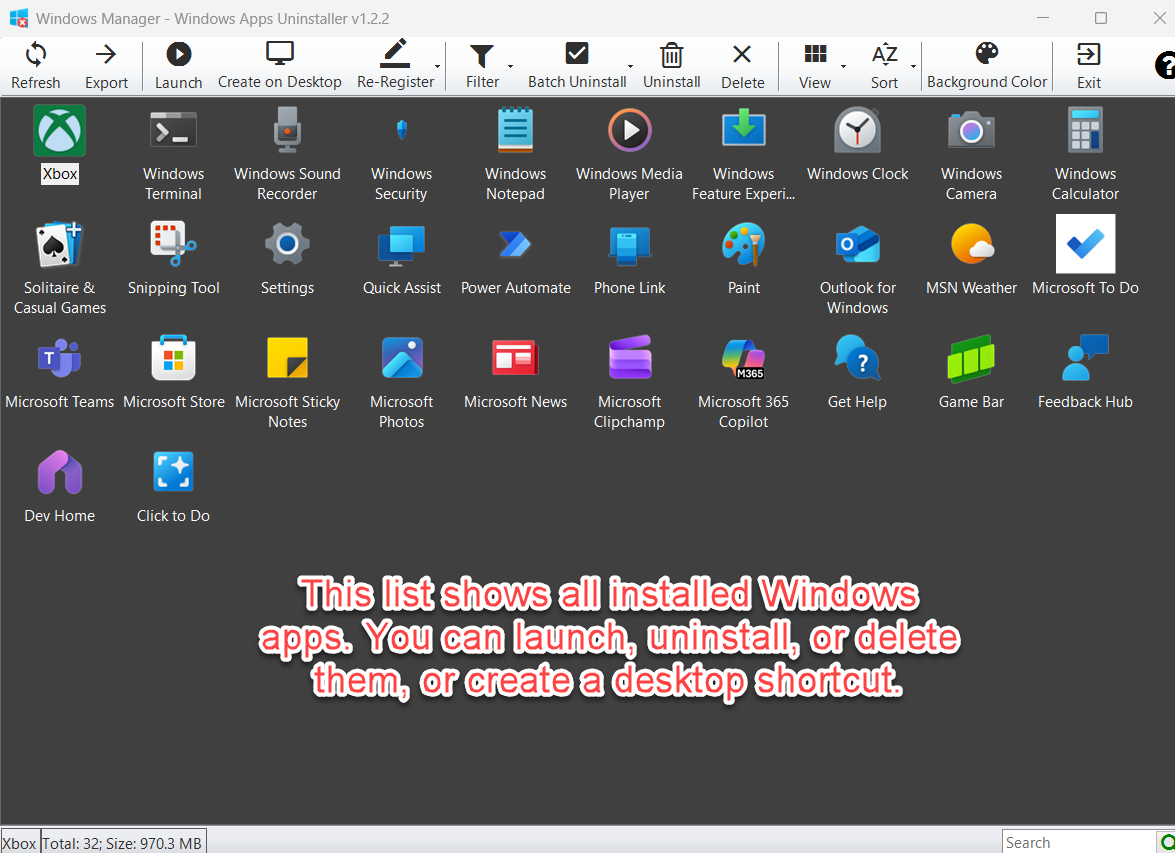
This list shows all installed Windows apps. You can launch, uninstall, or delete them, or create a desktop shortcut.
Large icons are the default. View also offers List and Details. In Details you can read the display name, description, version, vendor, size, and creation date. Name, family name, full package name, publisher ID, install path, and AppUserModelID are available as extra columns.
Sort orders the list by display name, version, vendor, size, or creation date. The box at the lower right searches display names. The status bar shows the count and the total size, for example “Total: 32; Size: 970.3 MB”.
Refresh reads the packages again. Background Color changes the list background. Exit closes the window.
3. Launch an app and create a desktop shortcut
Select an app. Launch opens it. Double-clicking the icon does the same thing. Create on Desktop writes a shortcut on the desktop. The shortcut uses the app’s own logo, the same artwork shown in the list, not a generic system icon.
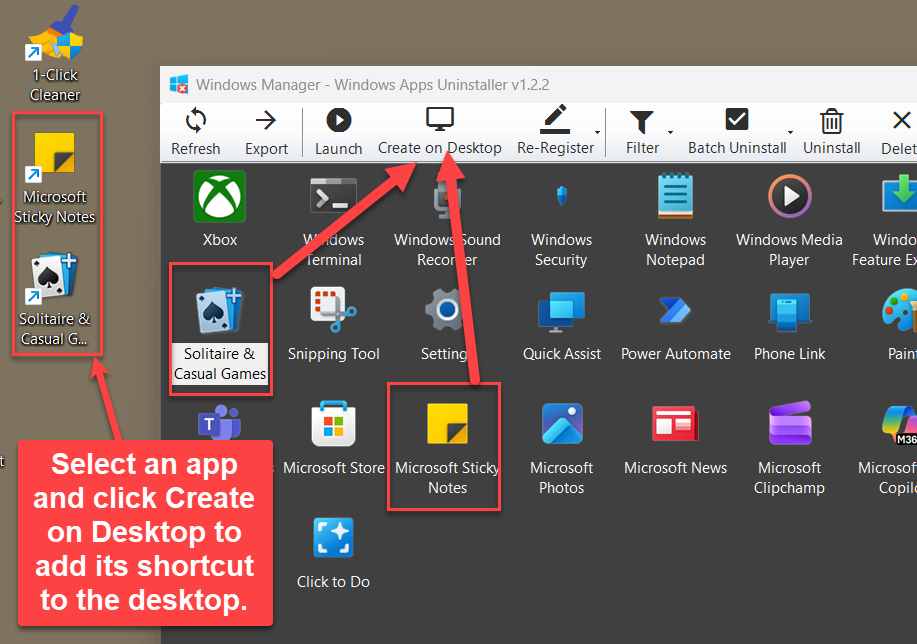
Select an app and click Create on Desktop to add its shortcut to the desktop. You can then open that app from the desktop without searching the Start menu. If the app has no launch ID, Launch and Create on Desktop stay disabled.
4. Re-register a Windows app that will not open
When an app is installed but crashes, shows a blank window, or disappears from Start, the package is often still on disk and only the registration is broken.
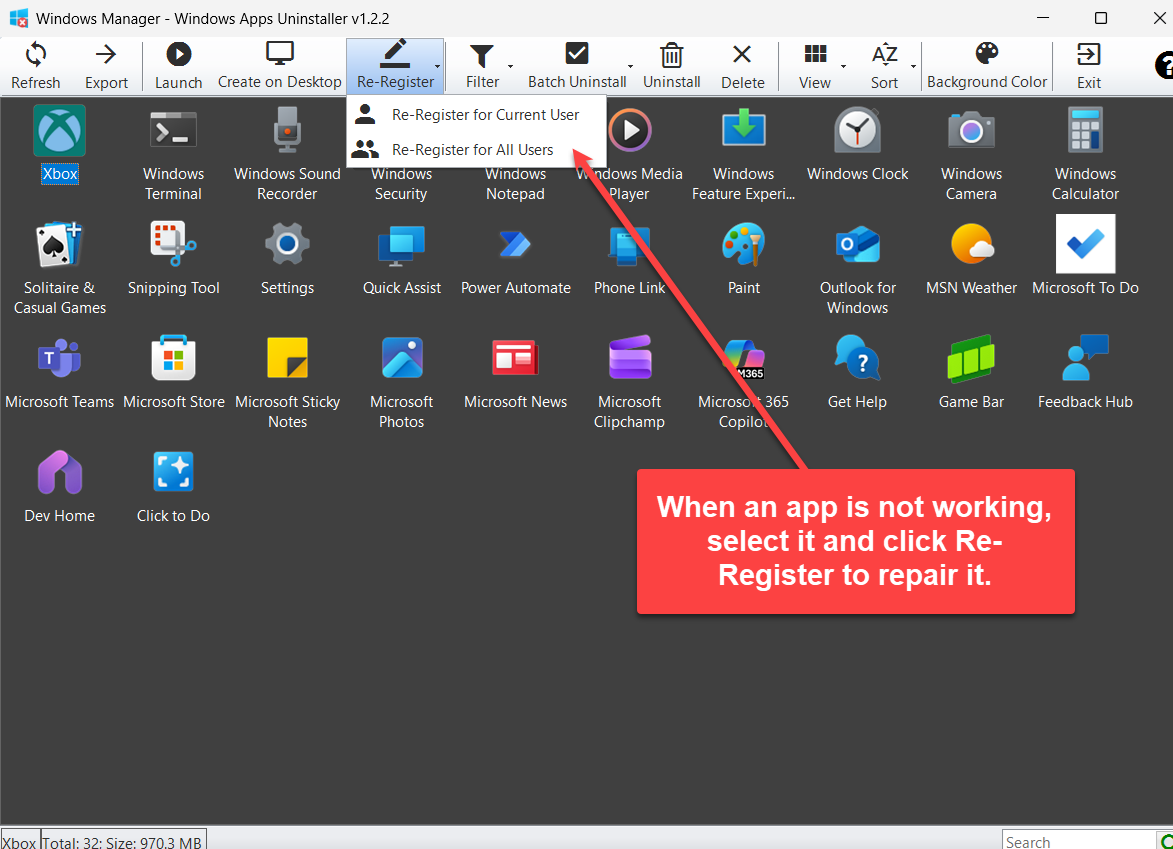
When an app is not working, select it and click Re-Register to repair it. Two commands are in the menu:
- Re-Register for Current User registers that package for the account you are using.
- Re-Register for All Users registers it for every account on the PC.
This does not download the app again from the Microsoft Store, and it does not reinstall missing files. It registers the copy that is already in the app folder. If the folder itself is gone, re-register cannot repair it. Install the app again from the Store instead.
5. Filter Microsoft apps and runtime components
A new PC lists dozens of Microsoft apps beside the few you actually use. Framework packages are a second, quieter group: they support other apps and are not meant to be opened.
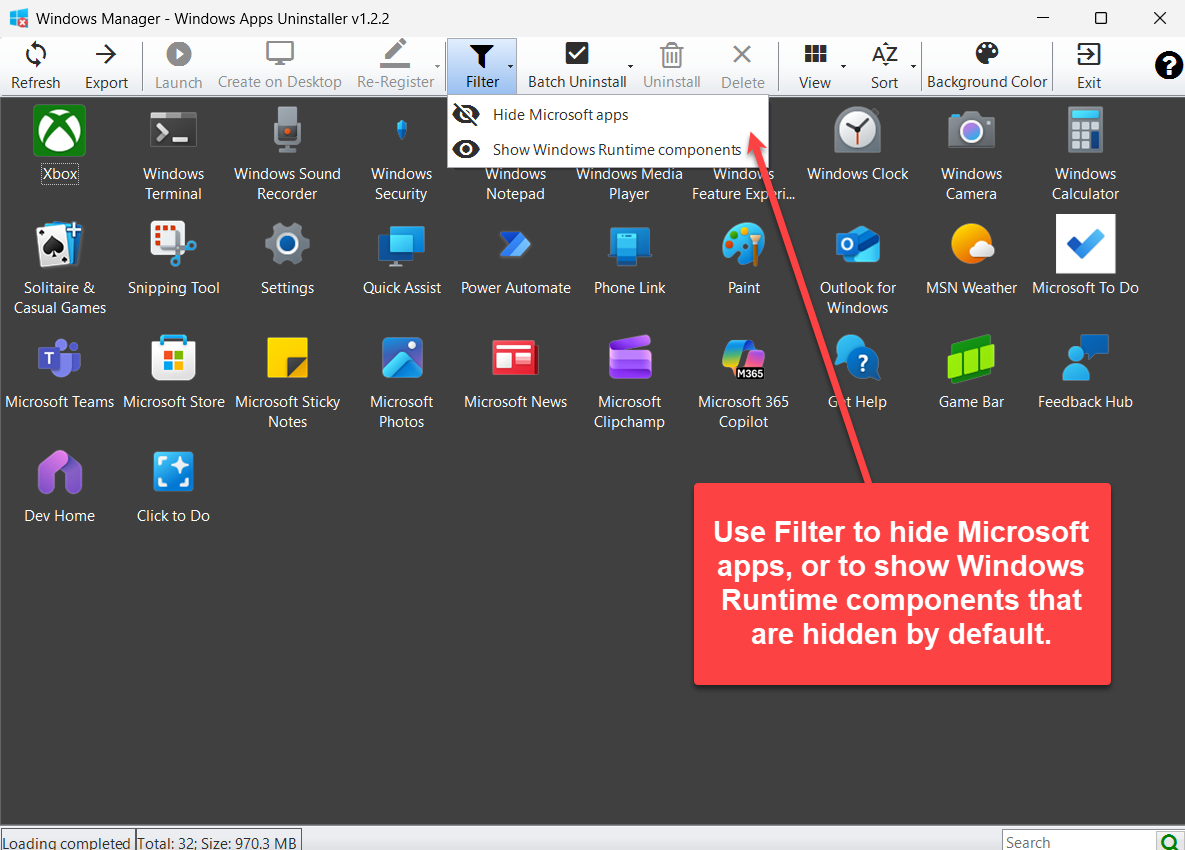
Use Filter to hide Microsoft apps, or to show Windows Runtime components that are hidden by default.
- Hide Microsoft apps drops apps published by Microsoft, including many built-in apps. Third-party Store apps stay in the list. Click the item again to show Microsoft apps.
- Show Windows Runtime components adds framework packages such as .NET Native Runtime, .NET Native Framework, and VCLibs. Leave this off unless you are checking those components. They are not apps you launch.
The list reloads when you change either option. Windows remembers the choice.
6. Uninstall several Windows apps at once
One selected app is enough for Uninstall. A batch needs checkboxes first.
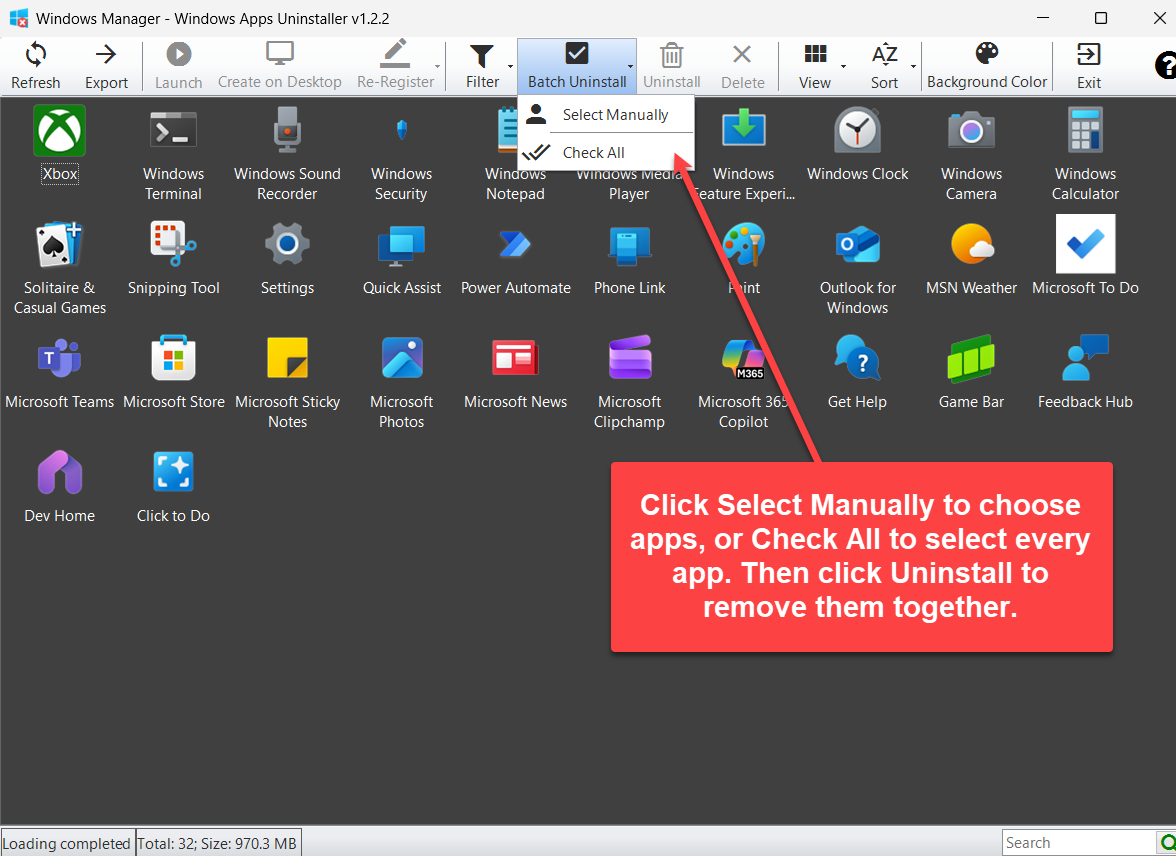
Click Select Manually to choose apps, or Check All to select every app. Then click Uninstall to remove them together.
- Open Batch Uninstall.
- Click Select Manually. A checkbox appears on each icon. Check the apps you want, or click Check All.
- Click Uninstall and confirm. The program removes each checked app and drops it from the list when the removal succeeds.
Click Select Manually again to leave batch mode. Delete is not available while checkboxes are on. Delete works on the single selected app only.
Check All really means every app currently listed, including ones Windows needs. Filter the list first if you only want third-party apps, and clear the check on anything you still use before you confirm.
7. Uninstall versus Delete
Uninstall removes the app package the way Windows expects. You are asked: “Are you sure you want to uninstall the selected Windows apps?” A successful single uninstall reports “Uninstalled successfully.”
Delete is the fallback. The program asks you to use Delete only when the app cannot be uninstalled normally. If you continue, it removes the installation folder. It does not unregister the package the way Uninstall does. Use it only when Uninstall fails and you accept that the app may be left in a broken state. Do not delete folders for apps you still want to open.
Some system packages refuse both actions. If Windows will not remove Microsoft Store, Settings, or a security app, leave it installed.
8. Export, view, and search
Export saves the apps you are looking at to an HTML file. The suggested name looks like WindowsAppUninstaller_20261029_160000.html. The page has the display name, version, vendor, size, and creation date. When the file is written, the program asks: Export completed. Open the HTML file now?
Export follows the current filter and search. Hide Microsoft apps first if you want a report of third-party apps only.
View switches among large icons, a list, and details. Sort changes the order. The search box at the lower right narrows the list by display name and shows how many names matched.
9. Important notes
- This list is Windows apps, not every program on the PC. Installers that put an entry in Settings under Apps, or an uninstall key in the registry, are handled by Smart Uninstaller.
- Do not remove apps you do not recognize just because they are from Microsoft. Store, Settings, Security, and the input experience are Windows apps. Uninstalling them can remove features you still need.
- Prefer Uninstall. Delete only when Uninstall cannot remove the app, and only for an app you are willing to lose.
- Re-Register repairs registration. It does not replace missing app files and it does not contact the Store.
- Runtime components are shared. Showing them is for inspection. Removing a .NET Native or VCLibs package can stop other Store apps from starting.
- The shortcut points at the app, not at a copied exe. If you later uninstall the app, the desktop icon will no longer open it.
- The tool runs with administrator rights so it can remove packages and re-register them for all users. Confirm the prompt from Windows before you start a batch.
10. FAQ
How do I uninstall a Microsoft Store app?
Select it and click Uninstall. For several apps, use Batch Uninstall, then Select Manually or Check All, then Uninstall.
What is the difference between Uninstall and Delete?
Uninstall removes the package. Delete removes the app folder and is only for an app that cannot be uninstalled normally.
How do I fix a Windows app that will not open?
Select the app and click Re-Register, then Re-Register for Current User or Re-Register for All Users. This registers the installed package. It does not download the app again.
How do I hide Microsoft apps?
Open Filter and click Hide Microsoft apps. Click it again to show them. Show Windows Runtime components is a separate switch for framework packages that are hidden by default.
Can I put a Store app on the desktop?
Yes. Select the app and click Create on Desktop. The shortcut uses that app’s icon.
Try it now
Windows Apps Uninstaller is the list for packaged Windows apps: launch, shortcut, uninstall, and re-register. Desktop programs stay in Smart Uninstaller. The rest of the suite is on the product page.
Get started: Download Windows Manager, open Windows Apps Uninstaller, and review the list before you uninstall anything.
