Windows remembers the wireless networks you have joined, including how they connect, the security type, and the password. After you replace an adapter or reinstall Windows, some of those records stay with the current adapter and some are left under an adapter that is no longer present. Settings often does not show the full history, and it is not convenient for backing everything up at once.
Wi-Fi Manager in Windows Manager lists and manages the wireless network profiles on this PC. You can see profiles saved on the current adapter, networks found in the current scan, and connection history left by old adapters. You can also change the auto-connect order, show a saved Wi-Fi password, back up or restore profiles, and block or allow a specific SSID.
The sections below follow the window: what each list is for, which buttons apply, and what to check before you change anything.
1. What can Wi-Fi Manager do?
- Show every wireless profile in one place. The list is split into past connection history, profiles on the current adapter, and networks found in the current scan.
- Show a saved Wi-Fi password. Passwords appear as asterisks. Click the eye icon to show the password in plain text. It is hidden again after 10 seconds.
- Set the auto-connect order. Move a saved profile up or down on the current adapter so Windows prefers one network over another.
- Connect or disconnect a nearby network. Use Connect or Disconnect on a network from the current scan. A blocked SSID cannot be connected.
- Open the full settings of a saved profile. Details shows the connection mode, SSID, security type, and key.
- Block or allow a network. Block one SSID, or allow only the networks on the allow list.
- Back up and restore profiles on the current adapter. The backup includes the password, which helps when you move to another PC or reinstall Windows. Past connection history cannot be exported with this backup.
2. How do I open Wi-Fi Manager?
Open Wi-Fi Manager from the network tools in Windows Manager. The toolbar is at the top and the wireless list fills the window. The list refreshes once when the window opens.
Toolbar buttons:
- Refresh: Read the adapters, saved profiles, and currently detected networks again.
- Up / Down: Change the connection priority of the selected profile on the current adapter.
- Connect / Disconnect: Connect to or disconnect from a network in the current scan. When a network is already connected, the button changes to Disconnect.
- Details: Show the full saved profile for the selected network.
- Delete: Delete the selected current profile, or delete past connection history.
- Security: Block, unblock, allow, or remove an SSID, or switch the “block everything except the allow list” mode.
- Backup: Back up the selected profile, back up every profile on the current adapter, or restore from a backup.
- Exit: Close the window.
The question-mark icon at the upper right shows a short note: you can view and manage all wireless network profiles; move an item up or down to set connection priority; you cannot connect to a blocked SSID, and when every network except allowed ones is blocked, only allowed SSIDs can be connected. Online Help under that note opens this page.
Some buttons stay unavailable until you select the right row. Backup Selected is available only when a profile under Current Wi-Fi connection history is selected. It stays gray for an available network or for past history. That is expected, even when the list has rows.
3. The three wireless lists
After a refresh, the list is usually divided into three groups. Use the arrow on the left to expand or collapse a group.
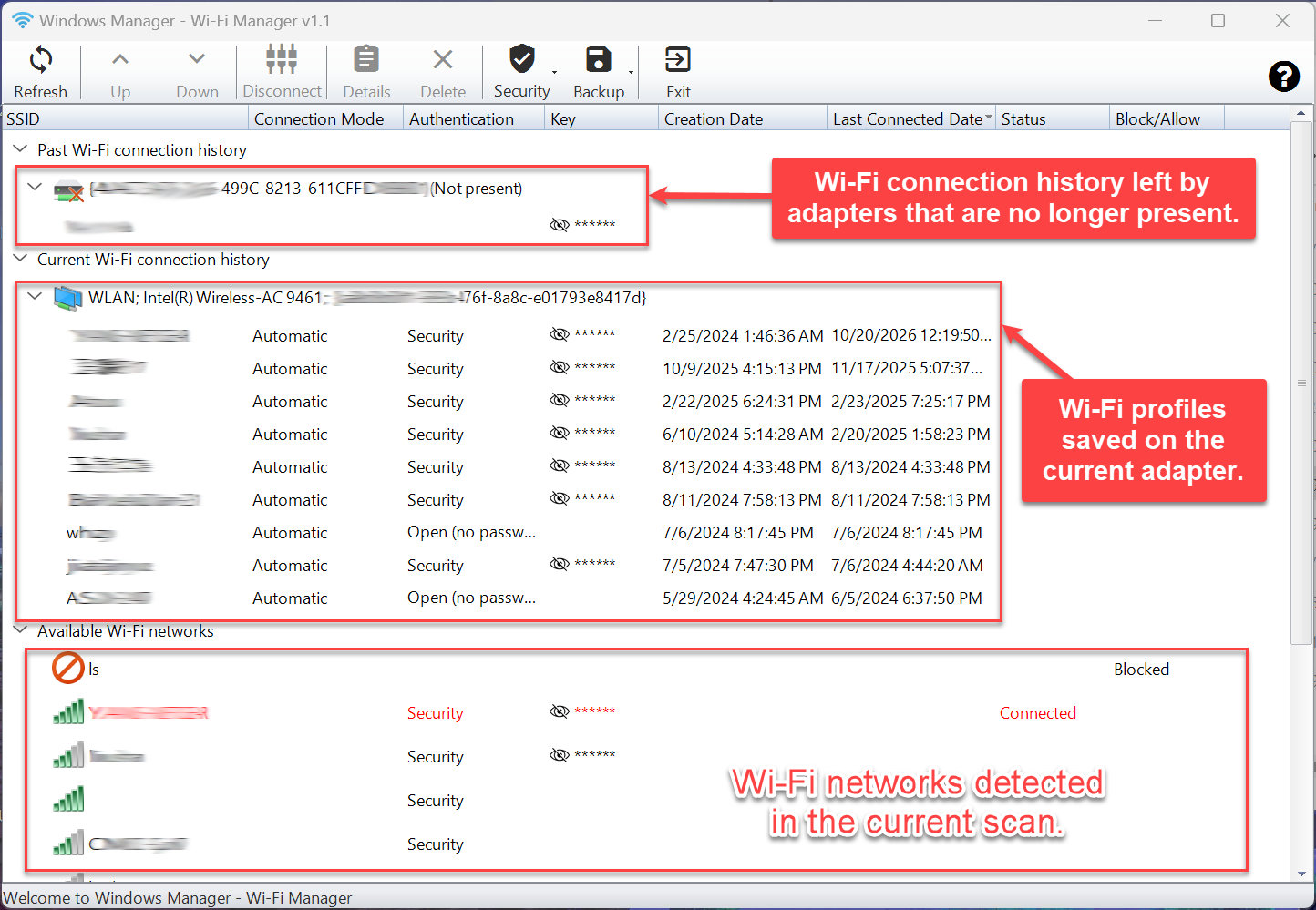
Past Wi-Fi connection history
These are connection records left by wireless adapters that are no longer on this PC. The adapter row is marked Not present. Expand it to see the SSIDs and passwords from that adapter. You cannot connect with these records, and Backup Selected or Backup All cannot export them. When you no longer need them, select a row and click Delete.
Current Wi-Fi connection history
These are the profiles saved on the wireless adapter that is present now. The adapter row shows its name, description, and identifier. Each row under it is an SSID, with connection mode, authentication, key, creation date, and last connected date. Back up, change priority, or delete a current profile only after you select one of these rows.
Available Wi-Fi networks
These are the networks found in the current scan. The signal icon shows strength. A network that is connected now shows Connected in red in the Status column. A blocked network shows Blocked in the Block/Allow column. Connect and Disconnect apply only to this group.
4. Passwords, dates, connection status, and block status
Each row has these columns, from left to right:
- SSID: The wireless network name.
- Connection Mode: Automatic connects when the network is in range. Manual waits until you connect.
- Authentication: Open (no password) is an open network. Other security types are shown as Security.
- Key: The saved password. It is shown as ****** until you reveal it.
- Creation Date: When the profile was created.
- Last Connected Date: When it was last connected.
- Status: Whether this network is connected now.
- Block/Allow: Whether the network is blocked, allowed, or has no individual rule.
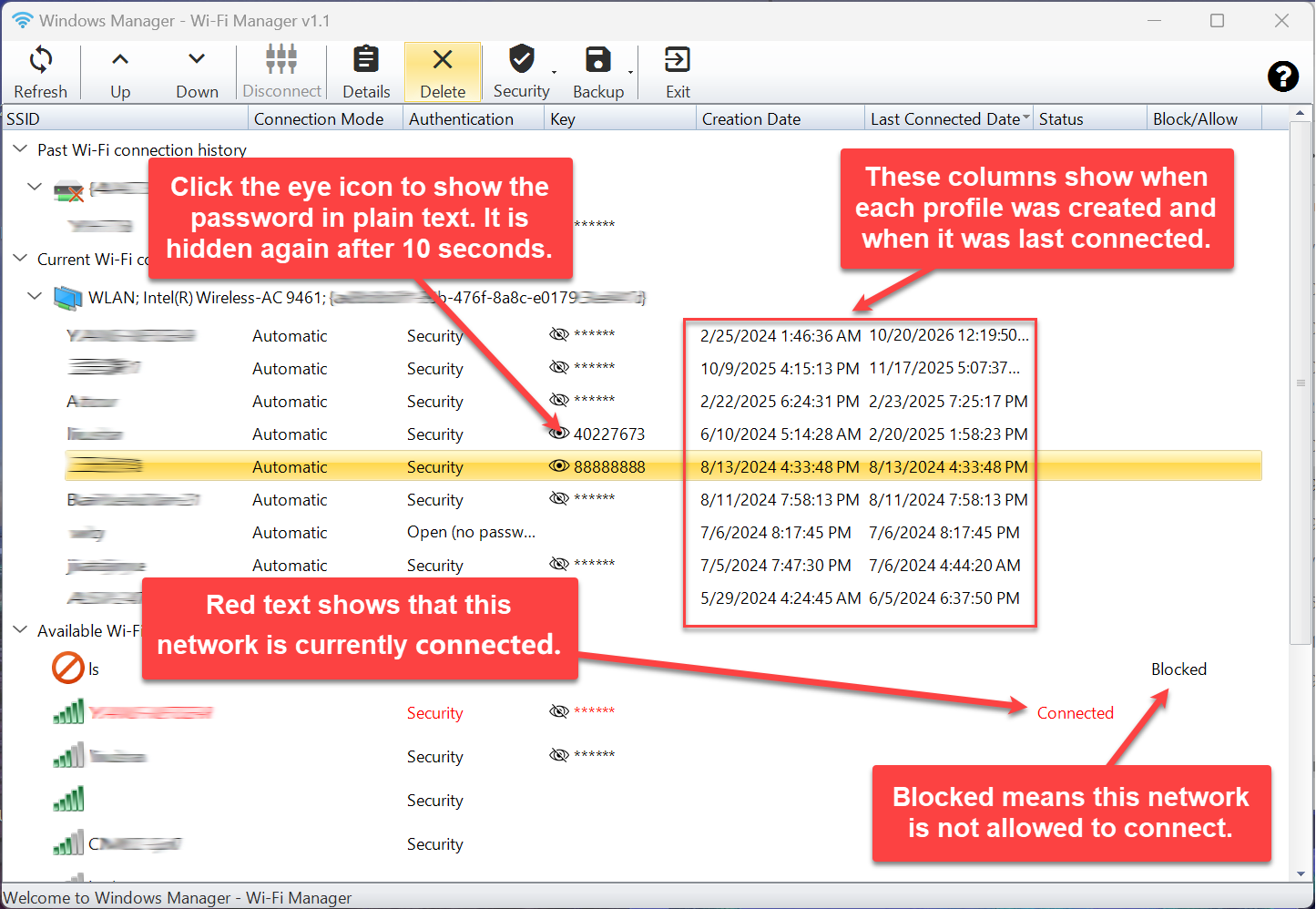
Click the eye icon in the Key column to show the password in plain text. It is hidden again after 10 seconds. Anyone who can see the screen can read it during that time. Wait until it is hidden before you take a screenshot or start a screen share.
Red text means this network is currently connected. Blocked in the Block/Allow column means this SSID is not allowed to connect. Connect stays unavailable for that row.
5. Connect, disconnect, and set priority
Connect or disconnect
Select a network under Available Wi-Fi networks:
- If the PC is not connected, the button is Connect. An open network connects directly. If a password is required, Wi-Fi Manager asks you to enter one.
- If a profile for that SSID already exists, you are asked: A network profile already exists. Do you want to use it? Choose Yes to use the saved password. Choose No to type a new one.
- An empty password cancels the connection. If the password does not match the network’s requirements, you are told that the password is invalid and asked to enter it again.
- If the PC is already connected, the button changes to Disconnect. It is available only when you select the row that is connected now. Click it to disconnect. Other available networks cannot be joined until you disconnect first.
You cannot connect to a blocked SSID. When all networks except allowed ones are blocked, only allowed SSIDs can be connected to.
Change auto-connect order
Up and Down are available only when you select a profile under Current Wi-Fi connection history. A row higher in the list has higher connection priority. The top row cannot move up, and the bottom row cannot move down. If there is only one profile, both buttons stay unavailable.
After a move, the list refreshes and the same profile is selected again, so you can keep adjusting it.
6. View Wi-Fi profile details
Select a network that already has a saved profile, then click Details, or double-click the row. Wi-Fi Profile Details shows the full settings, including the adapter, connection mode, whether it switches to other networks, the SSID, the network type, and the security key.
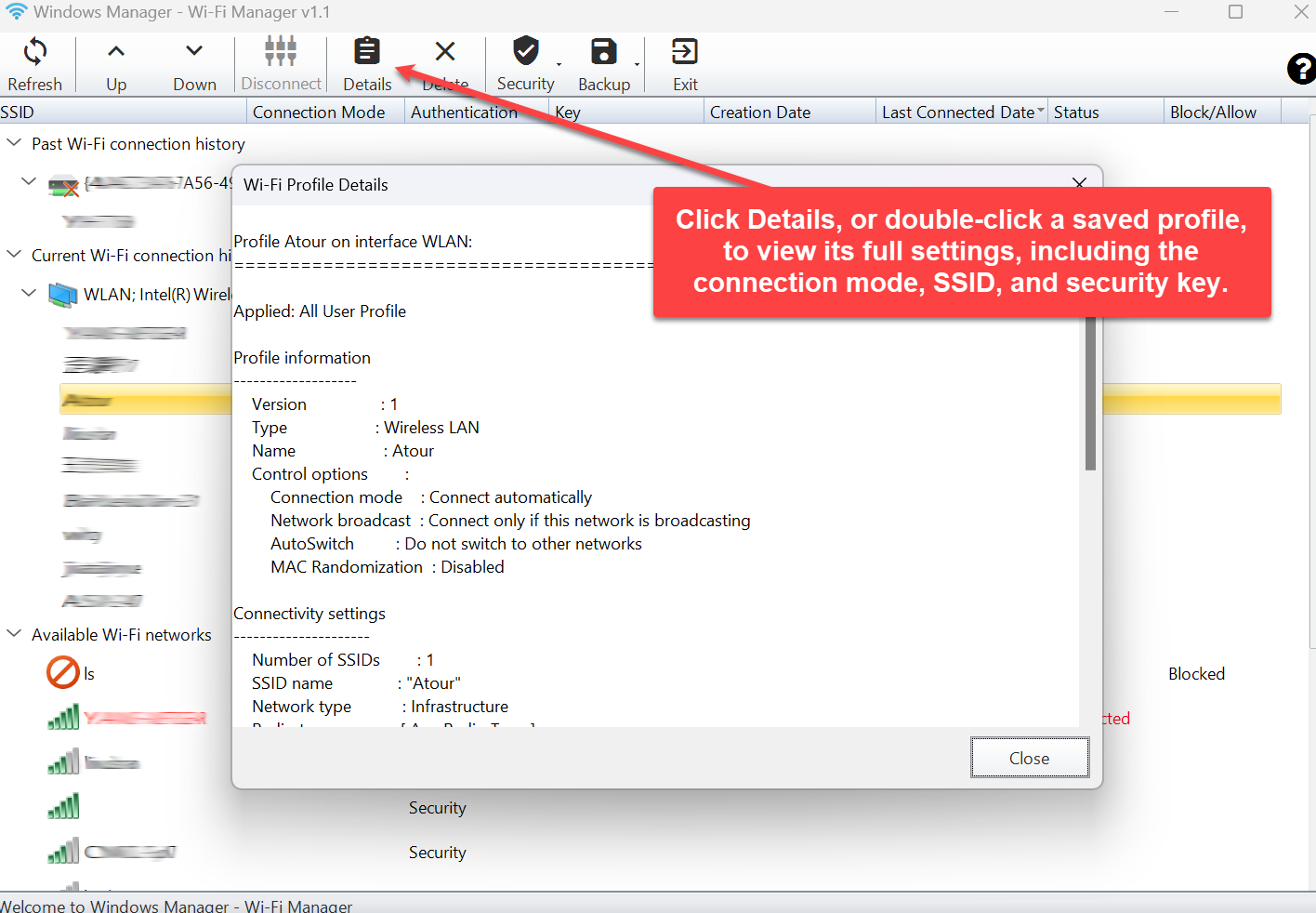
Details stays gray for an available network that has no saved profile, and double-click does not open it. For past connection history, read the password from the Key column in the main list.
The key in the details window is plain text. Click Close when you are finished.
7. Block and allow wireless networks
Select an SSID under the current profiles or the available networks, then open Security. The commands you can use depend on that row’s Block/Allow value.
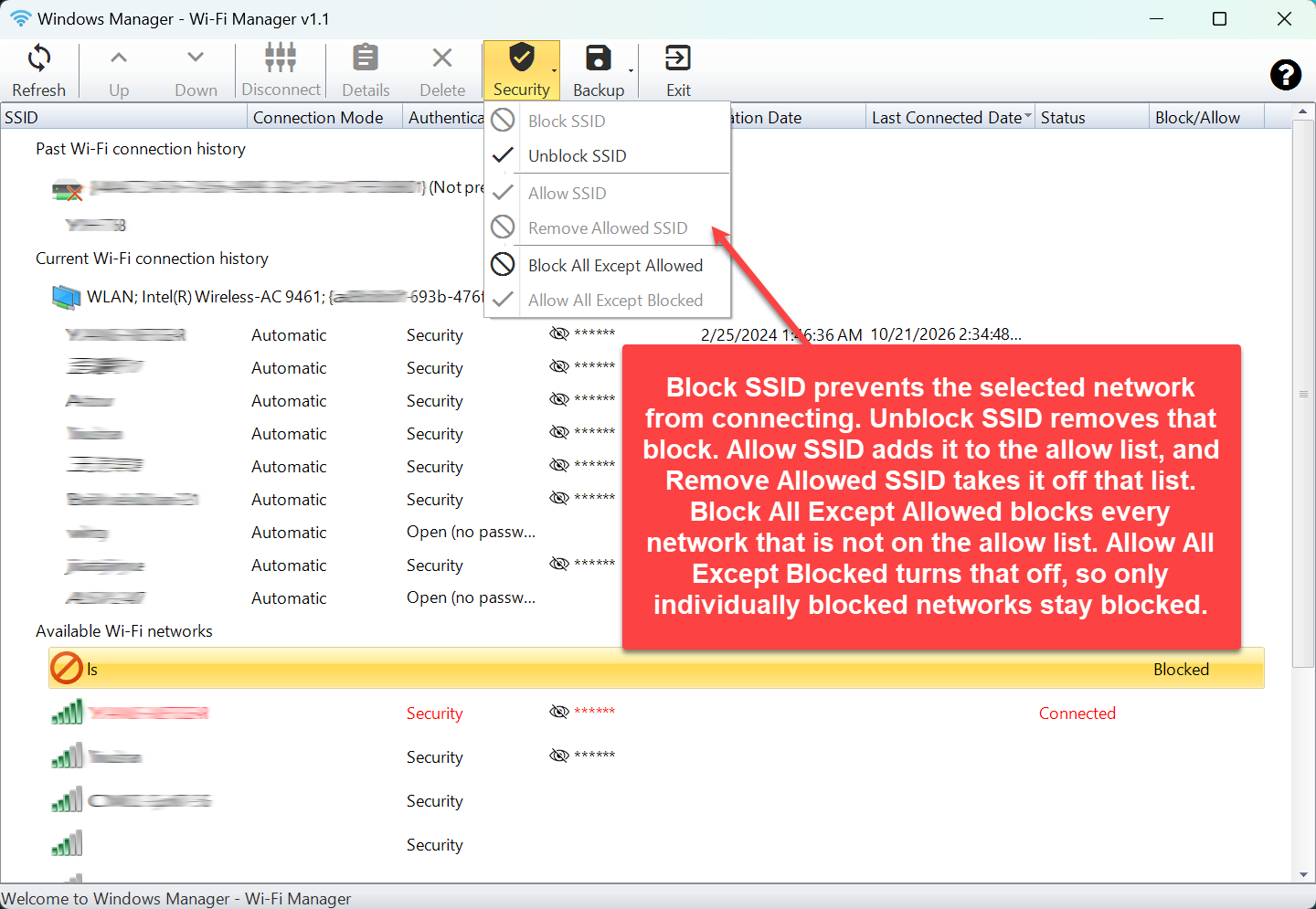
- Block SSID: Prevents the selected network from connecting. The Block/Allow column shows Blocked.
- Unblock SSID: Removes that block. Available only when the row is Blocked.
- Allow SSID: Adds the selected network to the allow list.
- Remove Allowed SSID: Takes it off the allow list. Available only when the row is Allowed.
- Block All Except Allowed: Blocks every network that is not on the allow list. Newly detected networks that are not allowed cannot be connected either.
- Allow All Except Blocked: Turns that mode off. Only individually blocked networks stay blocked.
When the Block/Allow cell is empty, you can block the network or add it to the allow list. An Allowed row can be removed from the list. A Blocked row can be unblocked.
Block All Except Allowed applies to wireless connections on this PC, not only to the selected row. Allow the SSIDs you still need, such as home, office, and a phone hotspot, before you turn it on. Otherwise those networks cannot be joined.
8. Back up and restore Wi-Fi profiles
Open Backup to see four commands. The Backup button on the toolbar can always be opened. Backup Selected inside the menu depends on which row is selected.
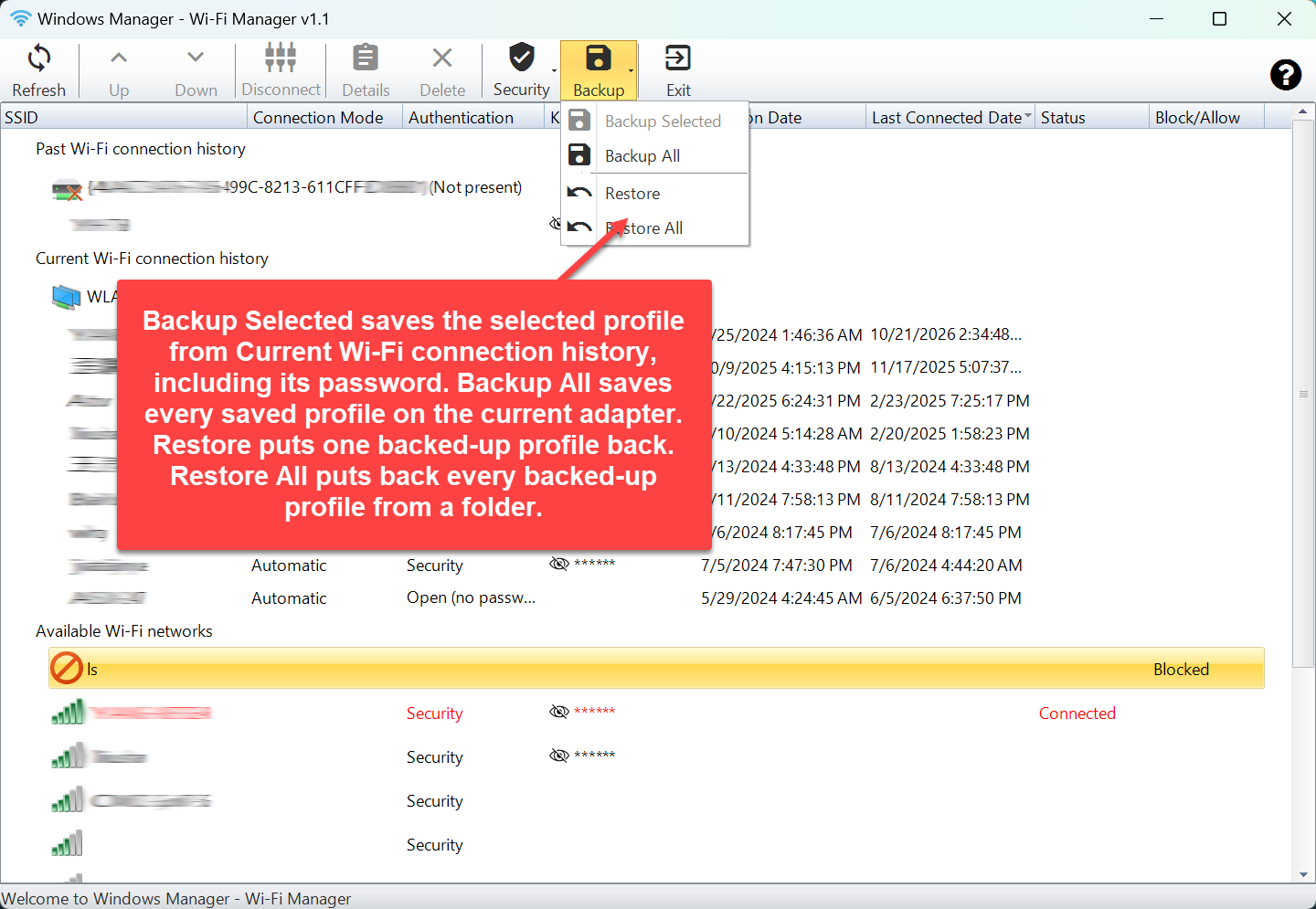
- Backup Selected: Saves the selected profile from Current Wi-Fi connection history, including its password. Select that row first, then choose a folder. A message confirms that the profile has been backed up.
- Backup All: Saves every saved profile on the current adapter, including passwords. It is available when that adapter has at least one profile. It does not back up Past Wi-Fi connection history.
- Restore: Puts one backed-up XML profile back for the current user. The file filter is XML Files.
- Restore All: Puts back every XML profile from a folder. If the folder has no XML files, you are told that the file does not exist.
An exported file is usually named with the adapter and the profile, for example Wi-Fi-Home.xml. Restore All processes every XML file in the folder, not only files with one fixed prefix.
The password inside these XML files is plain text. Keep the folder where only you can open it. Do not put it in a shared cloud folder, an email, or a chat. Delete the backup from that PC when you are finished, or store it on an encrypted disk.
9. Delete a profile or past connection history
Select the row and click Delete. Wi-Fi Manager asks you to confirm. Choose No and nothing is removed.
- Deleting a profile under Current Wi-Fi connection history removes that saved profile from the current adapter. You will need the password again, unless you still have a backup to restore.
- Deleting a row under Past Wi-Fi connection history, or deleting the missing adapter node, removes that history. This group cannot be exported with Backup. Confirm that you no longer need the passwords before you delete them.
Scan results under Available Wi-Fi networks cannot be deleted. They are signals from this scan and can appear again after Refresh. To stop a connection, use Block SSID.
10. Things to watch
- Check which group the row belongs to. Backup, Up, and Down apply to saved profiles on the current adapter. Connect and Disconnect apply to available networks. Past history is for viewing and deleting.
- If Backup Selected is gray, select a profile under the current adapter. An available network, past history, or the adapter name row does not enable it. If the current adapter has profiles, Backup All can save all of them.
- Past connection history cannot be backed up. The adapter is no longer present, so the export command cannot read those old files. Copy any password you still need before you delete the row. Do not rely on the Backup menu for that group.
- Backup files contain plain-text passwords. Keep the XML files to yourself.
- The eye icon shows a password for 10 seconds. It is hidden again automatically. Do not capture or share the screen while it is visible.
- A blocked SSID cannot be connected. Select the row and click Unblock SSID when you need it.
- Block All Except Allowed can lock you out of networks you use. Allow those SSIDs first. To turn the mode off, click Allow All Except Blocked. Networks that were blocked individually stay blocked.
- Deleting a current profile stops automatic connection to it. Back it up first if it is a home or office network you still use.
- Details is available only for a saved profile. A hotspot with no profile can still be connected, but there is nothing to open yet. After it connects and a profile is saved, refresh the list.
- The list refreshes after you block, allow, reorder, or delete. Click Refresh any time to scan nearby networks again.
11. Typical workflows
Back up every Wi-Fi password before you reinstall or change PCs
- Open Wi-Fi Manager and wait for the list to refresh.
- Expand Current Wi-Fi connection history and confirm that the profiles you want are under the current adapter.
- Click Backup → Backup All and choose a folder that only you can open.
- After the message that all wireless network profiles have been backed up, copy that folder to the new PC. Do not share it with a public link.
- On the new PC, open Wi-Fi Manager and click Backup → Restore All, then select the folder.
Back up one home network
- Select that SSID under Current Wi-Fi connection history. Backup Selected becomes available.
- Click Backup → Backup Selected and choose where to save it.
- Later, use Restore and select that XML file to put this one profile back.
Stop the PC from joining a network
- Select the SSID under available networks or current profiles.
- Click Security → Block SSID.
- After the refresh, Block/Allow should show Blocked, and Connect is no longer available.
- When you need it again, select the same row and click Unblock SSID.
Prefer the home network over a phone hotspot
- Select the home SSID under Current Wi-Fi connection history.
- Use Up until it is above the phone hotspot. Higher in the list means higher priority.
- A network connects automatically when it comes into range only if its Connection Mode is Automatic.
Try it now
Use Wi-Fi Manager when you need a saved wireless password, a cleaner auto-connect order, a backup before you change PCs, or a block on an SSID you do not want. To manage site access or the Hosts file, continue with URL Manager. See the product page for the rest of Windows Manager.
Try it: Download Windows Manager and open Wi-Fi Manager to review the wireless profiles on the current adapter.
