Before you replace a drive, reinstall Windows, or send a PC for repair, you need a clear inventory: motherboard, CPU, memory, disks, graphics, the Windows edition, and whether the drive is still healthy.
System Information in Windows Manager puts that inventory in one window. The left side lists hardware and software categories. The right side shows the details for the item you click. From the same window you can open a S.M.A.R.T. disk health report, run a disk read and write speed test, export the current view to HTML, and start Windows diagnostic reports.
This guide explains each category, the two disk tools, export, and the built-in reports. Screenshots match the program. Hover over the ? icon at the top right, next to Export, for a short tip. Click Online Help at the bottom of that tip to open this page.
1. What can System Information do?
- List the hardware. Enclosure, mainboard, BIOS, CPU, memory, disks, video, monitors, audio, network adapters, keyboard, mouse, and devices that are invalid or disabled.
- List the software side of the PC. Computer name, Windows edition and architecture, time zone, user accounts, known folders, environment variables, codecs, event-log files, and installed hotfixes.
- Check disk health. HDD Report shows temperature, power-on count, power-on hours, and S.M.A.R.T. attributes.
- Measure disk speed. Disk Benchmark tests sequential, 512K, and 4K read and write speed in MB/s.
- Save or hand off the details. Export writes the current page to an HTML file. System Report starts Windows reports for diagnostics, reliability, power, battery, and Wi-Fi.
It is an inventory and a set of checks. It does not change drivers, uninstall programs, or delete files. For live temperature and load, use Hardware Monitor.
2. Main window
Open System Information from Windows Manager. The window title includes the version. Two trees split the window:
- Left: Hardware and Software, each with its own items. Both groups start expanded.
- Right: The details for the selected item.
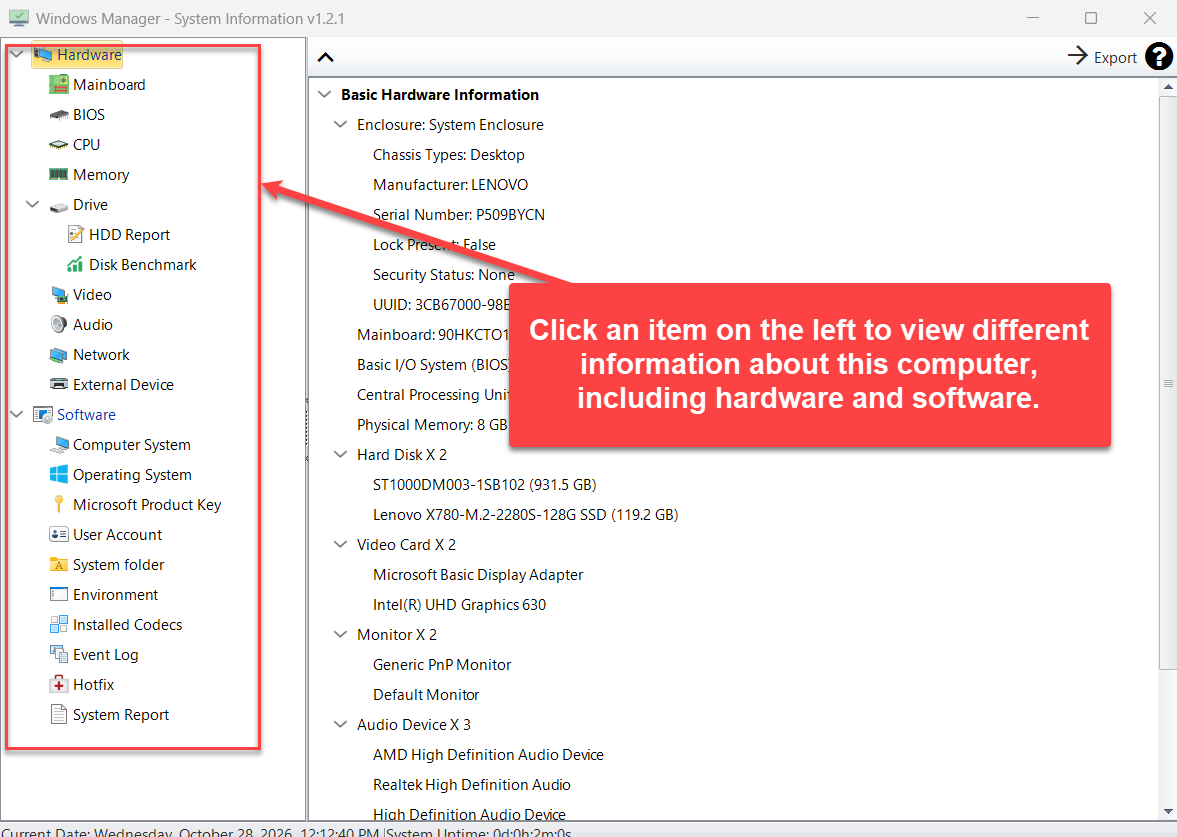
Click an item on the left. The right side refreshes. Hardware opens with a summary: enclosure, mainboard, BIOS, CPU, physical memory, hard disks, video cards, monitors, audio devices, and network adapters.
Toolbar and status bar
- Expand or collapse (the arrow at the left of the toolbar): opens or closes every row in the details tree.
- Export: saves the details you are looking at. See section 7.
- ?: short help, with Online Help underneath.
The status bar shows Current Date and System Uptime (days, hours, minutes, and seconds since Windows started).
Right-click the details
- Copy Selected to Clipboard copies the text of the selected row.
- Open Folder opens File Explorer when that row contains a folder that exists. This is meant for System folder. Double-clicking a folder row there does the same thing.
3. Hardware categories
Each item reads the hardware Windows can see. Names below are the English interface; other languages use the same layout.
- Hardware: a short summary of the PC, including chassis type, manufacturer, serial number, and a hardware score when Windows has one.
- Mainboard: model, onboard devices, slots, and ports.
- BIOS: vendor, version, release date, SMBIOS version, and whether the firmware mode is UEFI or legacy.
- CPU: name, cores, logical processors, socket, clock speeds, and cache.
- Memory: installed modules, with type, speed, form factor, bank, and size.
- Drive: physical disks and logical volumes: model, size, partition style, file system, and free space. HDD Report and Disk Benchmark sit under this item and open their own windows.
- Video: graphics adapter, driver version and date, memory, resolution, and refresh rate, plus connected monitors.
- Audio: sound devices.
- Network: adapter name, MAC address, IP address, subnet, gateway, DNS, and connection status. External IP Address looks up the public address on the Internet (the address outside your router). The result can include city, region, country, location, organization, and time zone. Use Copy to Clipboard when the lookup finishes. This needs a working Internet connection.
- External Device: printers, keyboards, pointing devices, and similar attached hardware.
Some rows are links. On the software summary, Microsoft DirectX Diagnostic Tool starts dxdiag.exe and waits until you close it.
4. HDD Report: disk health
Under Drive, click HDD Report. Pick a disk in the list at the top. The line under the list shows three numbers that are easy to miss in a long attribute table:
- Temperature
- Power-On Count (how many times the drive has been powered on)
- Power-On Hours
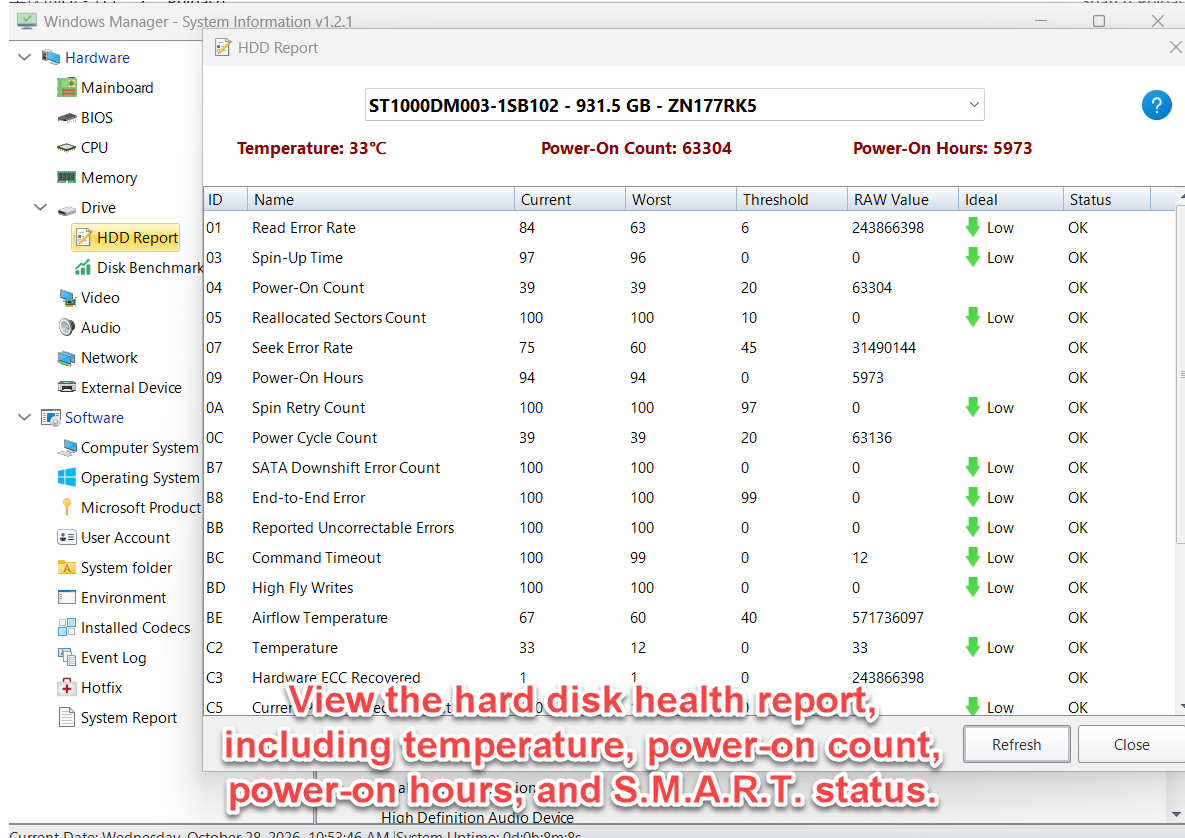
The table is the S.M.A.R.T. data for that disk:
- ID and Name, such as Reallocated Sectors Count, Seek Error Rate, or Temperature.
- Current, Worst, and Threshold. Current is the normalized value. Worst is the worst value seen. If Current falls to the threshold, the attribute is no longer OK.
- RAW Value is the underlying counter. For hours, temperature, or reallocated sectors, this number is often the one that matters.
- Ideal says which direction is better. High means a higher raw value is better. Low means a lower raw value is better. The question mark in that window explains the same rule.
- Status shows OK when the attribute has not failed its threshold.
Refresh reads the disk again. Close returns to the main window.
Read the raw values, not only the OK column. A drive can still show OK while Reallocated Sectors Count or temperature is climbing. Copy the model, serial number, temperature, power-on hours, and any attribute that is not OK before you decide to replace the disk. Some USB enclosures and some NVMe drives do not expose S.M.A.R.T. data; if the list is empty, the controller is not reporting it.
5. Disk Benchmark: read and write speed
Under Drive, click Disk Benchmark. The test measures how fast the selected volume can read and write, in megabytes per second.
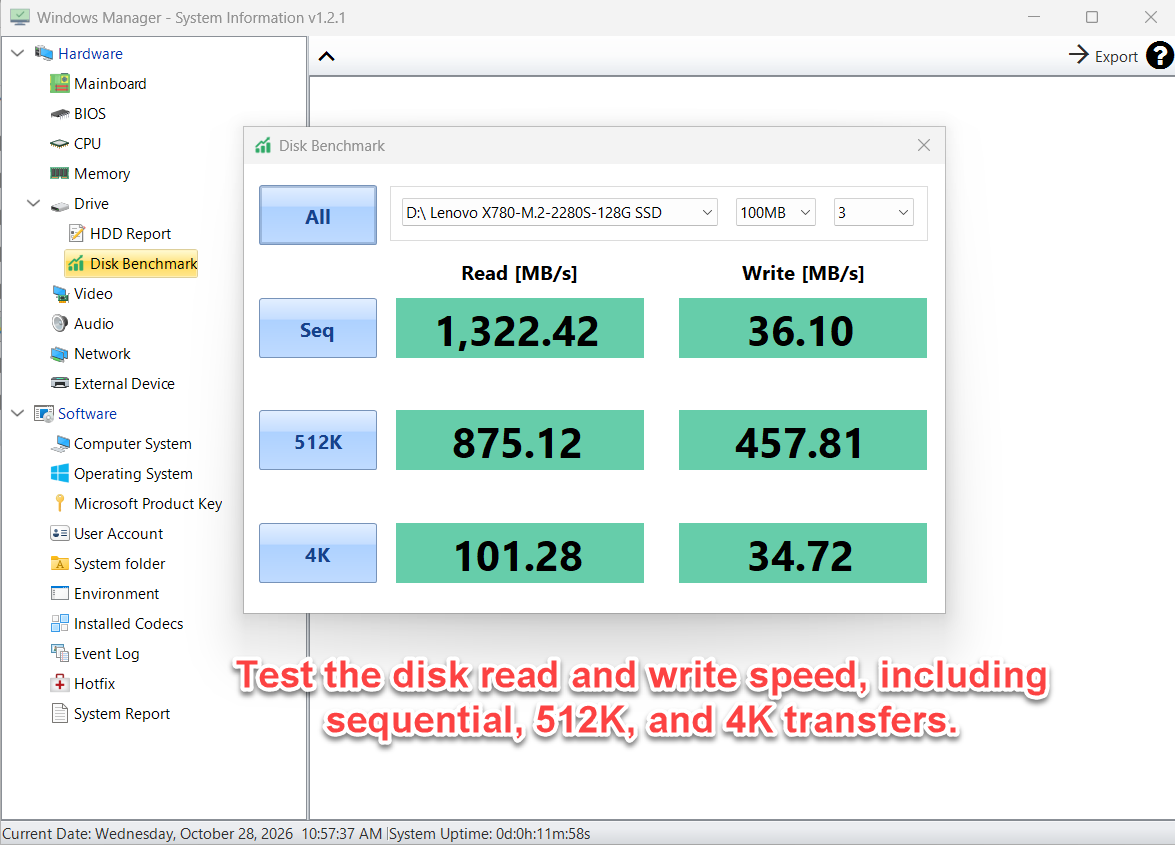
Set three options, then start a test:
- Drive: a ready fixed disk or a removable disk. The name includes the drive letter and, when available, the disk model.
- Size: 100MB or 10MB. A larger file is steadier; a smaller file finishes sooner. The volume needs free space for the test file.
- Repeats: 1 to 5. The window opens with 3 selected.
Four buttons run the test:
- All: runs sequential, 512K, and 4K, in that order. While it runs, the button label changes to Stop.
- Seq: large sequential transfers. This is the number people usually quote as “how fast is this SSD”.
- 512K: medium blocks.
- 4K: small blocks. This is usually much slower than sequential and is closer to everyday small-file work.
Each test fills Read [MB/s] and Write [MB/s]. The label shows Benchmarking until that part finishes.
Close other programs that are copying files or scanning the same disk. A benchmark writes to the drive, so do not run it when free space is almost gone, and do not treat one run as a lab result. Compare the same size and the same repeat count if you test again after a change.
6. Software categories
Click Software for a one-screen summary: manufacturer and model, system type (for example x64-based PC), computer name, current user, Windows edition and architecture, time zone, Internet Explorer version, and last shutdown time. Microsoft DirectX Diagnostic Tool is a link to DxDiag.
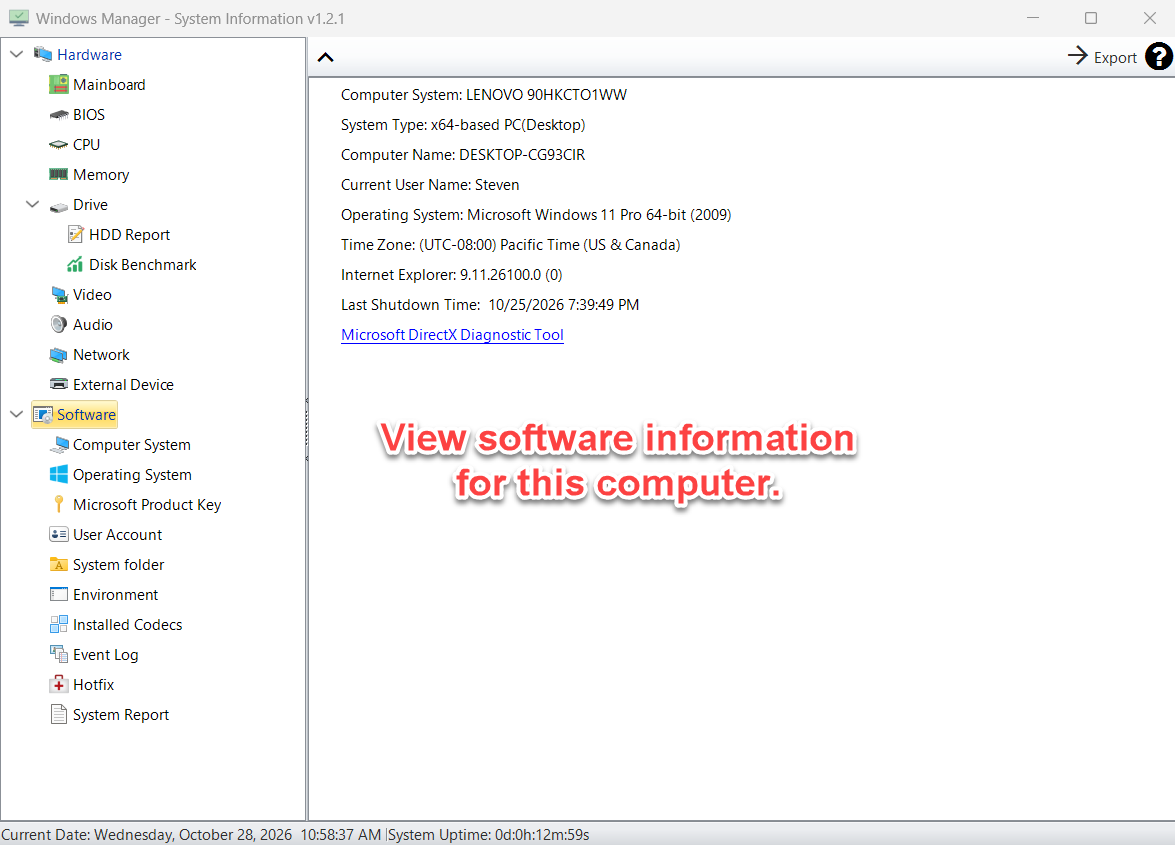
- Computer System: processor count, physical memory, page file, owner, boot state, wake-up type, domain or workgroup, and time zone.
- Operating System: edition, version, build, install date, last boot, memory and page-file usage, Windows and system directories, and the current user’s desktop settings (wallpaper, screen saver). License Information has two links: License Details runs
slmgr.vbs -dlv, and License Expiration Date runsslmgr.vbs -xpr. A command window stays open until the script finishes. - Microsoft Product Key: product name, product key, and product ID for Windows, and for Office XP, 2003, 2007, 2010, or 2013 when that key is stored on the PC. A Windows digital license, or a newer Microsoft 365 install signed in with an account, often has no classic 25-character key to display.
- User Account: each local account, with description, SID, domain, disabled, lockout, and whether a password is required or can expire.
- System folder: known folders such as Desktop, Documents, and Downloads, with the real path. Double-click a row, or right-click and choose Open Folder, to open it.
- Environment: environment variable names and values.
- Installed Codecs: video codecs and audio codecs, with file name, version, and size.
- Event Log: each log file (Application, System, and so on), with path, current and maximum size, number of records, and last modified time. This is the log file itself, not the list of individual events. To read errors line by line, open Event Viewer.
- Hotfix: installed Windows updates, with the hotfix ID and description (update, security update, and similar).
7. Export the current view
Export saves the details tree you are viewing, not every category at once. Select the page you want (for example CPU or Operating System), click Export, and choose an HTML file. The suggested name looks like SystemInfo_20261029_103000.html.
When the file is written, the program asks: Export completed. Open the HTML file now? Choose Yes to open it in the browser. The page includes the category name and the time it was generated.
If the current page is Microsoft Product Key, the HTML file contains the key. Keep that file private.
8. System Report
Under Software, click System Report. The window title says it generates various system reports. Each row starts a Windows tool and waits until that tool finishes.
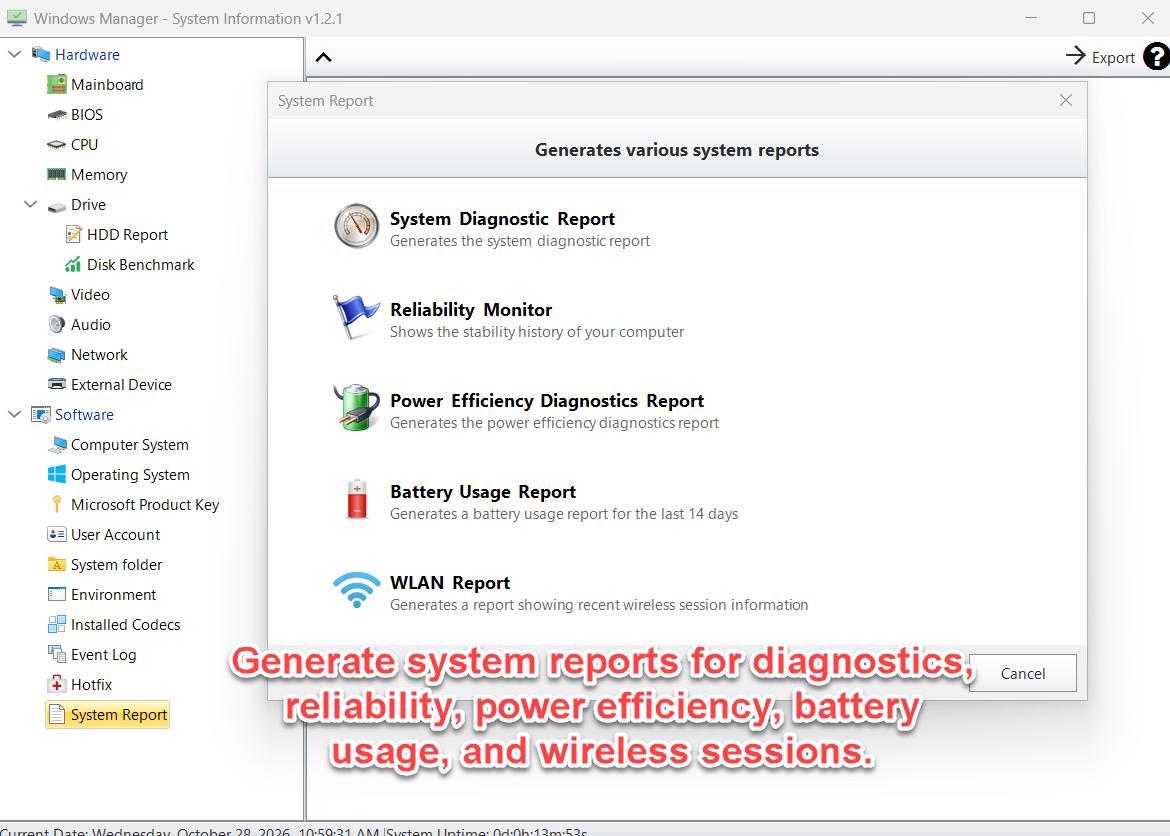
- System Diagnostic Report: generates the system diagnostic report (Resource and Performance Monitor). It can take a minute. Leave the PC idle while it runs.
- Reliability Monitor: shows the stability history of the computer, including application failures and Windows failures over time.
- Power Efficiency Diagnostics Report: runs the Windows energy report and opens
energy-report.htmlfrom the program folder. Useful when a laptop sleeps poorly or a desktop never idles. - Battery Usage Report: builds a battery report for the last 14 days and opens
battery-report.html. On a desktop without a battery, the report has little to show. - WLAN Report: builds a report of recent wireless sessions and opens the latest WLAN report. The PC needs a Wi-Fi adapter.
Cancel closes the list without starting a report.
9. Important notes
- Treat keys and serial numbers as private. Product keys, MAC addresses, the external IP address, and disk serial numbers identify this PC. Do not post an exported HTML file on a forum.
- OK in HDD Report is not a lifetime guarantee. Watch raw values for reallocated sectors, pending sectors, and temperature. Back up the disk before it fails.
- A speed test writes data. Pick a drive with free space, close other disk activity, and avoid repeating a long test on a nearly full system drive.
- Empty hardware rows are normal on some PCs. A virtual machine, a USB disk, or a locked-down firmware image may omit BIOS fields, S.M.A.R.T., or memory module details.
- External IP needs the Internet. If every lookup fails, the window says it could not get the external IP address. A VPN or proxy changes the address you see.
- License and report commands can take time.
slmgr, the diagnostic report, and the energy report open Windows tools. Wait until they close. They do not change Windows settings by themselves. - Event Log here is a file summary. Record counts and file sizes do not replace Event Viewer when you are chasing a specific error.
- Live sensors are a different tool. Temperature that updates every second, GPU load, and a high-temperature alarm belong in Hardware Monitor. System Information is the inventory and the disk report.
10. A practical workflow
Collect a support snapshot
- Open Hardware and read the summary.
- Open CPU, Memory, and Drive. Export each page if you need to keep it.
- Open Software, then Operating System, and export that page.
- Skip Microsoft Product Key unless you are storing the key for yourself.
Decide whether a disk is worth keeping
- Open HDD Report and note temperature, power-on hours, and any attribute that is not OK. Read the raw value for reallocated and pending sectors.
- Open Disk Benchmark, choose that disk, keep 100MB and 3 repeats, and click All.
- Compare sequential speed with what the disk model is rated for, and use 4K speed as a hint about small-file behavior.
Look into slowdowns or sleep problems
- Open System Report and run Reliability Monitor for crashes and failed updates.
- On a laptop, run Battery Usage Report and Power Efficiency Diagnostics Report.
- Use Hotfix to see whether a recent update matches the date the problem started.
11. FAQ
How do I see my PC hardware and Windows version in one place?
Open System Information. Hardware is the parts list. Software shows the computer name, Windows edition, user, and time zone. Operating System adds version, build, install date, and last boot.
How do I check hard drive health?
Expand Drive and click HDD Report. Read temperature, power-on count, power-on hours, and the S.M.A.R.T. table. Low in the Ideal column means a smaller raw value is better.
How do I test disk read and write speed?
Click Disk Benchmark, choose the drive and the test size, then click All or one of Seq, 512K, and 4K. Results are in MB/s.
Can it show a Windows product key?
Microsoft Product Key shows a key when this PC still has one stored for Windows or for Office XP through Office 2013. Many Windows 10 and Windows 11 PCs use a digital license and will not show a 25-character key. Do not export that page if you plan to share the file.
Try it now
System Information is the place to answer “what is in this PC?” before you clean up disk space, move folders, or watch live temperatures. Pair it with Hardware Monitor for sensors, and see the product page for the rest of Windows Manager.
Get started: Download Windows Manager, open System Information, and click Hardware.
