The Windows registry stores settings for Windows and installed software. Looking up one key in Registry Editor, or backing up the whole database before a change, is slow when you only have regedit. Registry Tools in Windows Manager gathers the everyday jobs into one window: search, jump, a Desktop shortcut, ownership, plus export and import of a .reg file.
It does not replace Registry Cleaner. Cleaner scans for invalid entries and deletes them after a backup. Registry Tools is for finding a key you already have in mind, opening it, fixing access, or saving and restoring the registry yourself.
1. How to open Registry Tools
In the Windows Manager main window:
Misc. Utilities → Registry Tools
You can also start it from the Registry Tools button on the Registry Cleaner toolbar. The window opens on Registry Finder. The left list switches tools; the status bar shows the name of the page you are on. ? at the top right shows a short tip and a link to this guide.
2. Registry Finder
Search subkeys, value names, and values in the registry hives you select. * matches any characters and ? matches one character. Turn on Full Match for an exact match, then open a result in Registry Editor or export the list.
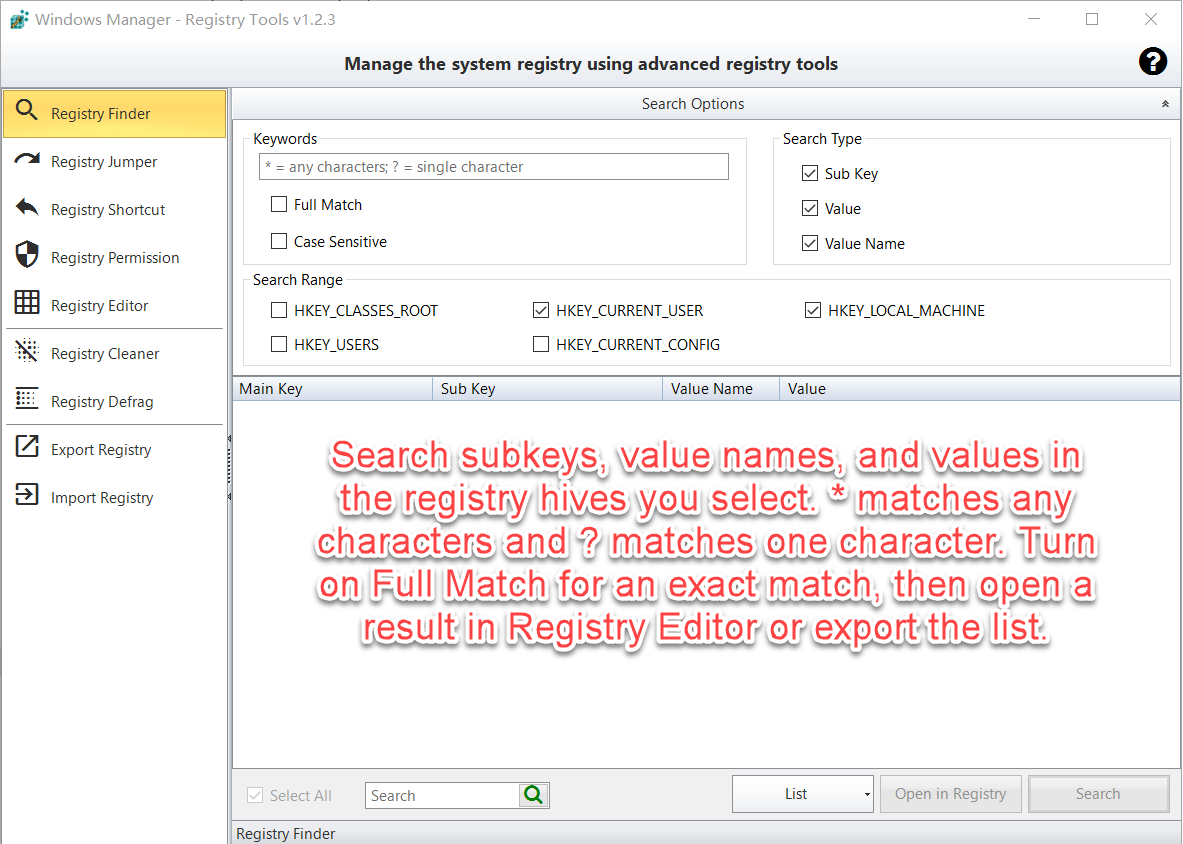
- Keywords: Type the text to find. If the keyword contains
*or?, Full Match is turned on for you and cannot be cleared until the wildcards are removed. - Case Sensitive: Match capital and small letters exactly.
- Search Type: Sub Key, Value Name, and Value. Value search reads string values (including expandable strings and multi-string values). Numbers and binary data are not searched as text.
- Search Range:
HKEY_CLASSES_ROOT,HKEY_CURRENT_USER,HKEY_LOCAL_MACHINE,HKEY_USERS, andHKEY_CURRENT_CONFIG. Leave a hive unchecked to skip it. A full hive, especiallyHKEY_LOCAL_MACHINE, can take a long time.
Click Search. The scan window can be paused or stopped. Show details lists the key currently being read and is slower. When the scan finishes, matches appear with Main Key, Sub Key, Value Name, Value, and Modified Date.
- Open in Registry jumps to the selected row. Double-click does the same.
- The box next to Select All filters the rows already on screen. It does not start a new registry search.
- List → New Export writes the rows to a new
.regfile. Append Export adds them to an existing.regfile. - List → Delete removes the checked rows. If you have not exported them in this session, Registry Tools asks you to back them up first. Deleting a row that is a subkey removes that subkey and everything under it.
3. Registry Jumper
Open a registry key directly in Registry Editor. Choose the main key, enter or paste the subkey path, and optionally enter a value name.
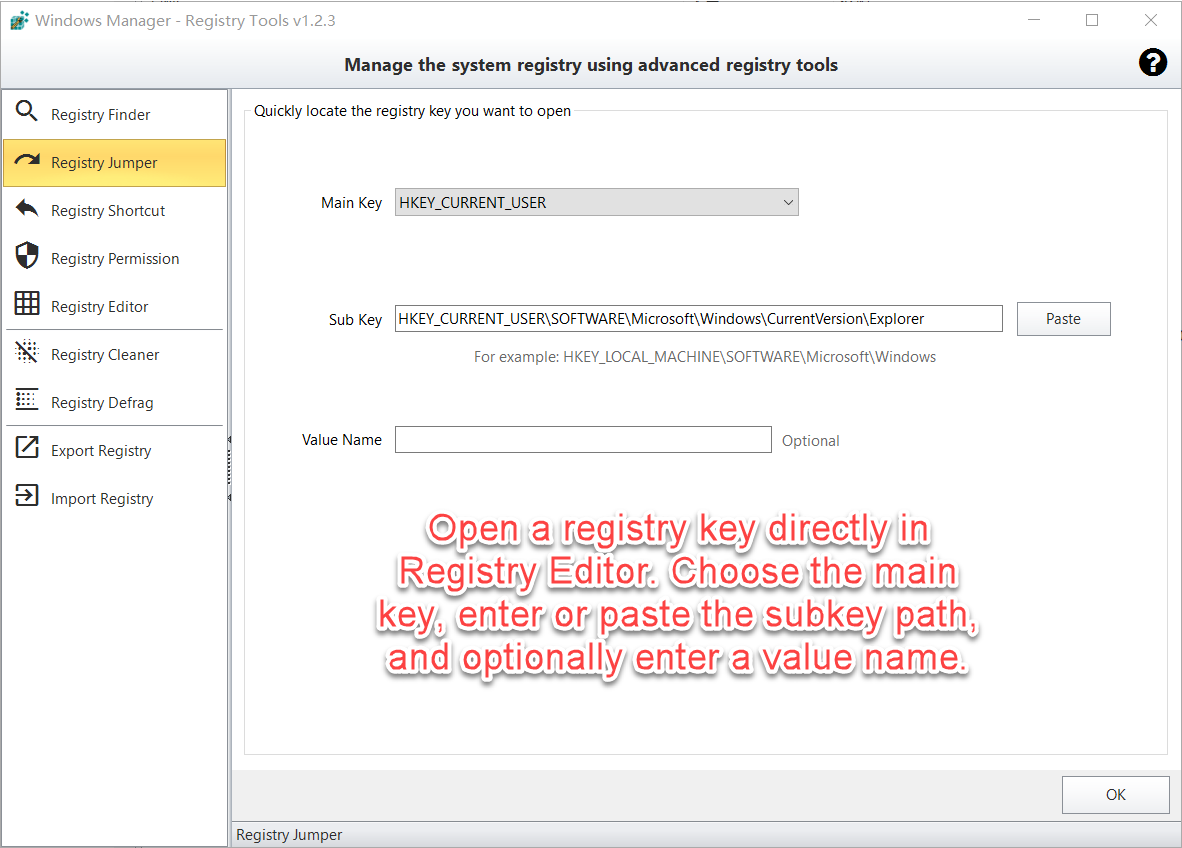
The path must start with HKEY_ and contain a backslash, for example HKEY_CURRENT_USER\Software\Microsoft\Windows\CurrentVersion. Paste fills the box from the clipboard. OK opens Registry Editor at that location. Value Name is optional; use it when you want a specific value selected.
4. Registry Shortcut
Create a shortcut on the Desktop that opens a registry key in Registry Editor. Enter or paste the full key path, then click Create.
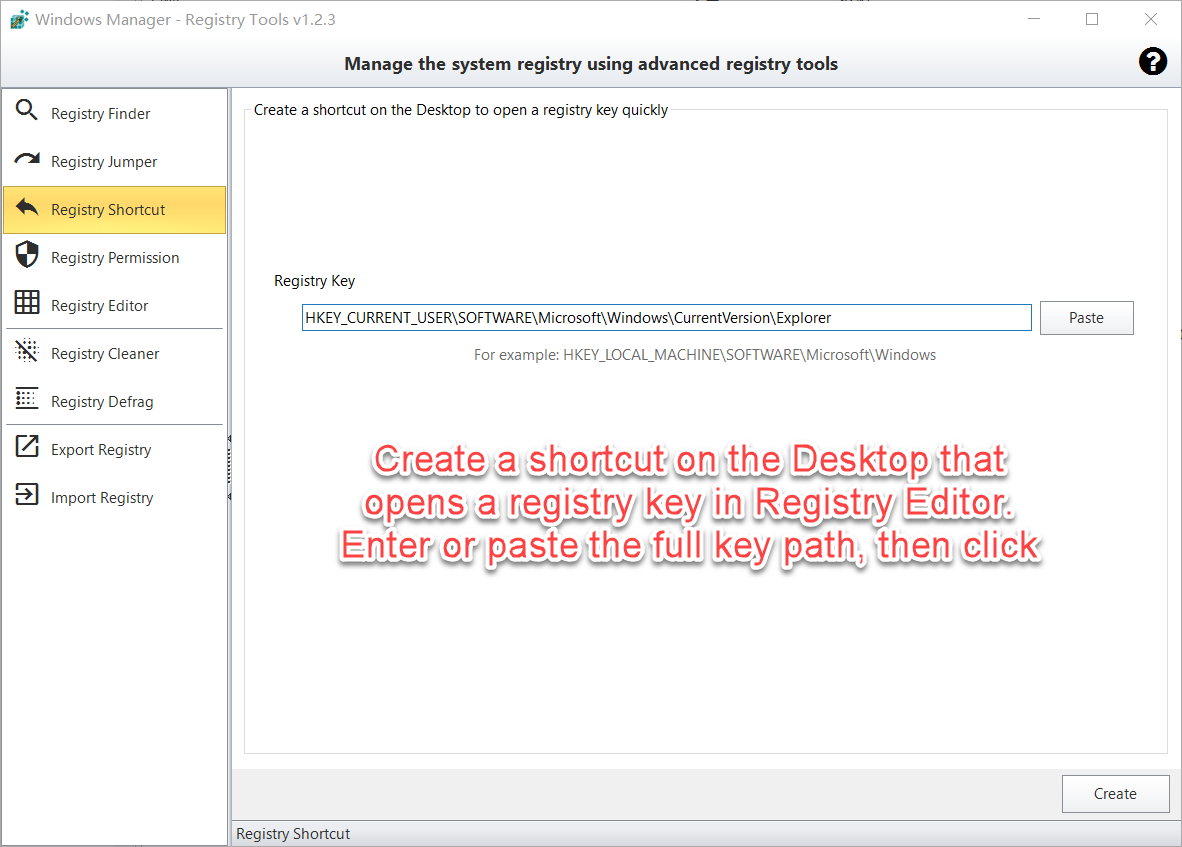
The shortcut is named after the last part of the key. Opening it later starts Registry Editor at that key, so you do not have to browse the tree again. Example: HKEY_LOCAL_MACHINE\SOFTWARE\Microsoft\Windows.
5. Registry Permission
Take ownership of a registry key and grant the current user full control. Enter or paste the full key path, and select Include subkeys to apply the change to the keys under it.
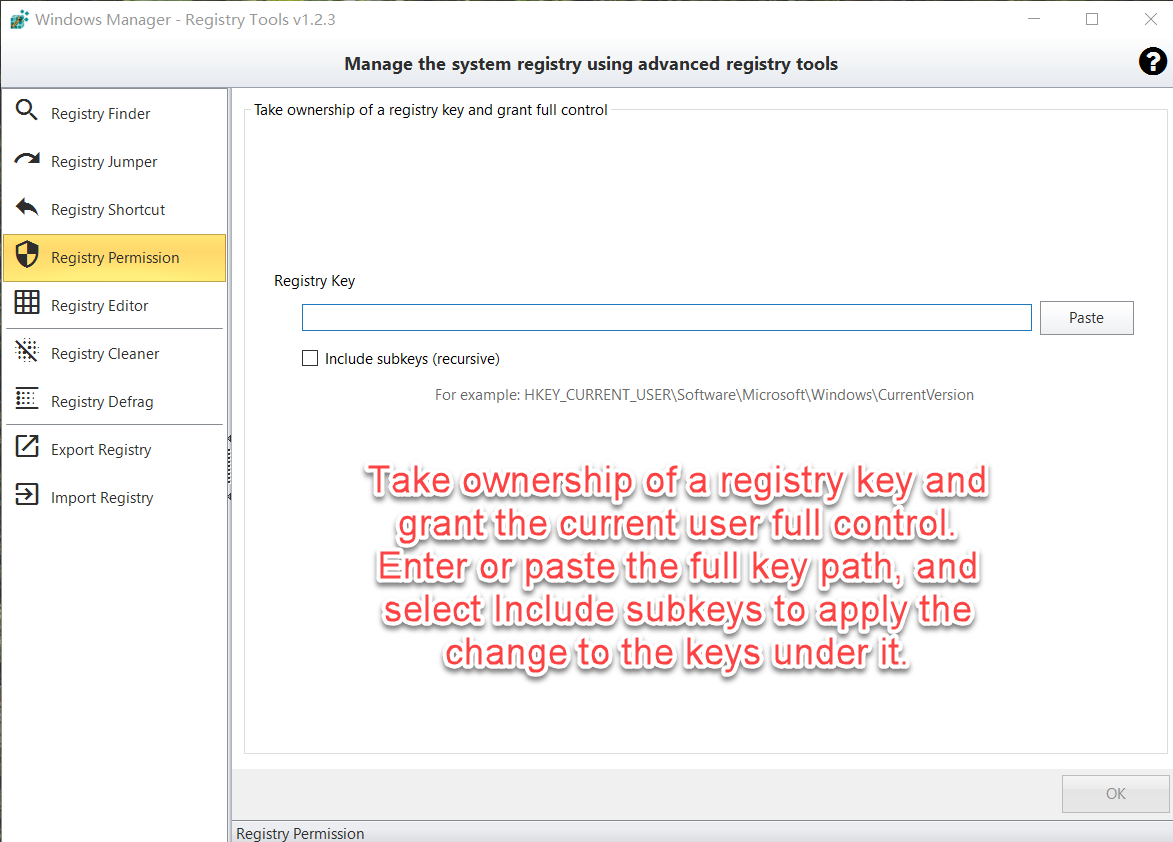
Use this when Registry Editor says access is denied and you have a clear reason to edit that key. Click OK. On success, ownership is taken and full control is granted. If it fails, run Windows Manager as administrator. Do not take ownership of Windows or security keys unless you know the result.
6. Registry Editor, Cleaner, Defrag, and backup
Open Registry Editor, Registry Cleaner, or Registry Defrag. Back up or restore the entire registry as a .reg file.
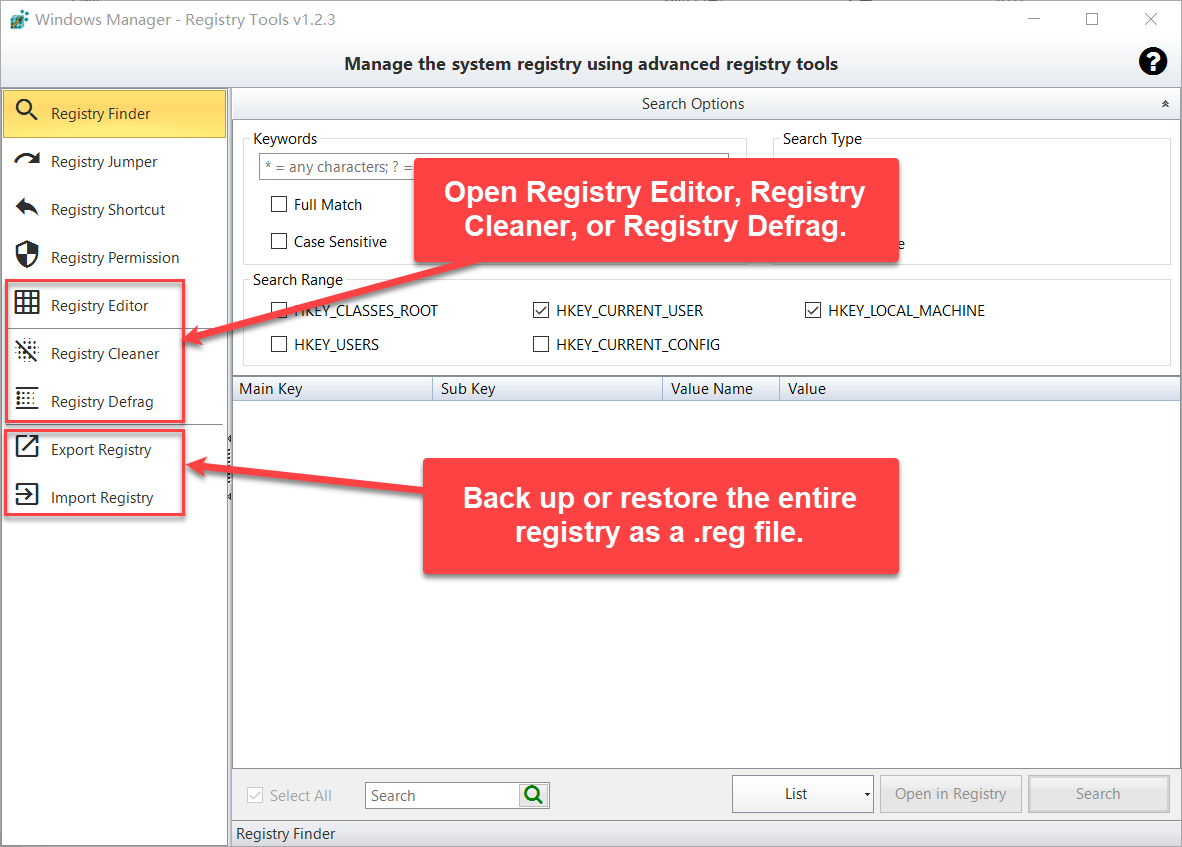
- Registry Editor starts Windows Registry Editor. You can open more than one instance.
- Registry Cleaner opens the separate cleaner for invalid entries. See the Registry Cleaner guide.
- Registry Defrag opens the defragmentation tool. The computer needs to restart after the registry is defragmented.
- Export Registry saves the entire registry to a
.regfile. The file is large and the export can take several minutes. When it finishes, you can open the folder and select the file. - Import Registry writes a
.regfile back into the Windows registry. Import only a file you exported yourself, or one you have read and trust.
7. Important notes
- Export before you delete or import. A mistaken delete, or a bad
.regfile, can stop a program or a part of Windows from working. Registry Finder will not delete checked items until they have been exported. - A subkey delete is recursive. If the result row is a key rather than a single value, deleting it removes that key and its subkeys.
- Value search is text only. DWORD, QWORD, and binary values are not matched by the keyword unless you are searching the value name.
- Narrow the hives. Searching every hive for a short word returns a huge list and takes a long time. Uncheck hives you do not need.
- Permissions are permanent until you change them again. Include subkeys only when the keys underneath should receive the same access.
- Run as administrator when a key cannot be read, deleted, or given a new owner.
- Close other programs before a full export or import so another process is less likely to lock a hive.
8. Typical workflow
- Open Misc. Utilities → Registry Tools.
- On Registry Finder, enter a keyword, limit the hives, and click Search.
- Select a row and click Open in Registry. If you need that location often, copy the path and create a Desktop shortcut.
- Before deleting anything, use List → New Export. Delete only the checked rows you have reviewed.
- Before a risky change, use Export Registry once and keep the
.regfile. Import it only if you need those settings back.
Try it now
Registry Tools sits with Registry Cleaner in the Windows Manager maintenance toolbox. Cleaner removes invalid entries; Registry Tools finds, opens, backs up, and repairs access to the keys you choose. See the product page for the rest of the suite.
Get started: Download Windows Manager and open Misc. Utilities → Registry Tools.
