After you install archive tools, cloud drives, antivirus software, and editors, the right-click menu on files, folders, and the desktop often grows long. Some commands are rarely used, some appear only while you hold Shift, and some sit in an awkward place. Windows 11 also folds the full menu behind Show more options, so every right-click takes an extra step.
Context Menu Manager in Windows Manager manages those menus. You can list commands for files, folders, the desktop, drives, and other locations, disable the ones you do not need, change where a command sits on the classic menu, and restore the Windows 11 classic context menu. When you need a finer split, you can manage one extension, tidy the Open With list, or add commands to a chosen location.
The sections below follow the main window, enable and disable, Item Position, Shift Key, and then File Type, Open With List, and Add Menu.
1. What can Context Menu Manager do?
- View the menu by location. The left side lists All File System Objects, File, Directory, Folder, Desktop, Send To, New, This PC, Shortcut, and other types. Each type has its own commands.
- Enable or disable a command. A checked item is enabled. Clear the check box and that command no longer appears on the matching right-click menu. Check it again to bring it back. The Status column shows OK or Disabled.
- Change menu position. Supported commands have an Item Position of Top, Middle, or Bottom, which is the top, middle, or bottom of the classic menu.
- Require the Shift key. When Shift Key is Yes, the command appears only while you hold Shift and right-click.
- Restore the Windows 11 classic context menu. Check Restore classic Context Menu and the full classic menu opens directly, without Show more options each time. Windows 10 does not show this check box.
- Go further by file type, Open With, and your own commands. File Type can add an extension such as png. Open With List manages the programs in the Select an app dialog. Add Menu can add a Ribbon Command, a common command, an administrator command, or a custom submenu.
2. How do you read the main window?
Open Context Menu Manager in Windows Manager. The window title looks like Windows Manager - Context Menu Manager. The toolbar across the top has:
- Refresh: reads the current right-click menu again.
- Delete: deletes the selected command. The program first suggests that you disable it, and that you delete it only after you have confirmed the item is invalid.
- Property: opens the properties of the file behind the command. This button is unavailable when Status is Unavailable, or when there is no file path.
- Open File Location: locates the file in File Explorer.
- Open in Registry: opens the matching key in Registry Editor.
- File Type, OpenWithList, and Add Menu: manage one extension, tidy Open With, and add a menu. Each is covered in its own section below.
- Exit: closes the window.
The list columns are Name, Description, Company, Shift Key, Item Position, Status, and Digital Signature. The Search box at the lower right filters by name. The button at the lower left expands or collapses every group.
Status is usually OK, Disabled, or Unavailable. Unavailable usually means the file the command points to is already gone, or the item cannot be used right now. Digital Signature shows a result such as Microsoft(Trusted) or Unknown, which helps you see where the command comes from.
3. How do you restore the Windows 11 classic context menu?
The Windows 11 default menu starts with a row of icons for copy, paste, delete, and similar actions. The rest of the commands sit behind Show more options. The Restore classic Context Menu check box at the lower left restores the classic menu so the full command list appears at once.
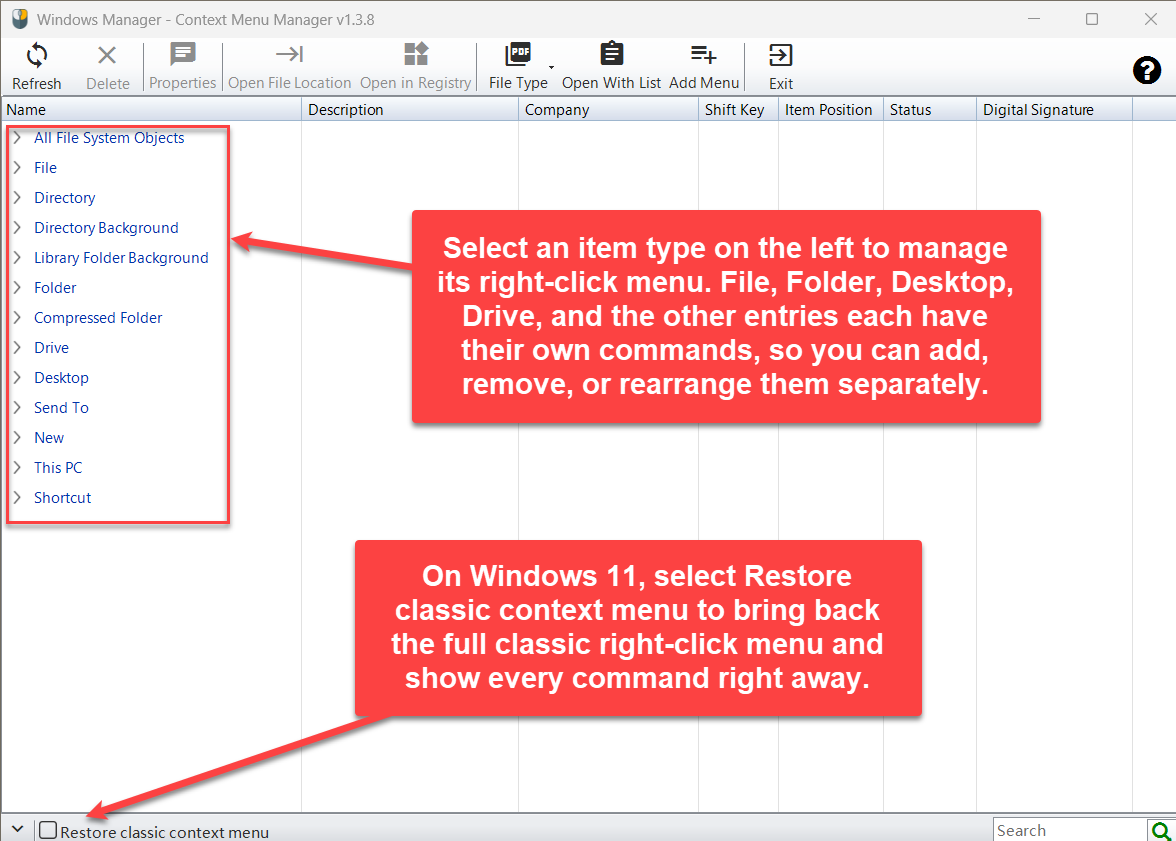
The list on the left is the set of item types you can manage: All File System Objects, File, Directory, Directory Background, Library Folder Background, Folder, Compressed Folder, Drive, Desktop, Send To, New, This PC, and Shortcut. Select one type, then manage that type’s own menu. The check box at the lower left is Restore classic Context Menu. On Windows 11, check it to restore the full classic right-click menu.
After you check or clear it, the program asks whether to restart File Explorer. The new menu style takes effect after you confirm. Windows 10 does not use this newer menu, so the check box is not shown.
If the system has turned the right-click menu off entirely, the program may ask at startup whether to enable it again. Choose Yes and File Explorer restarts.
4. How do you disable one right-click command?
Expand File, Directory, or another type on the left and find the command. A check mark means enabled. Clear the check box to disable it. Status then becomes Disabled, and the command disappears from that right-click menu.
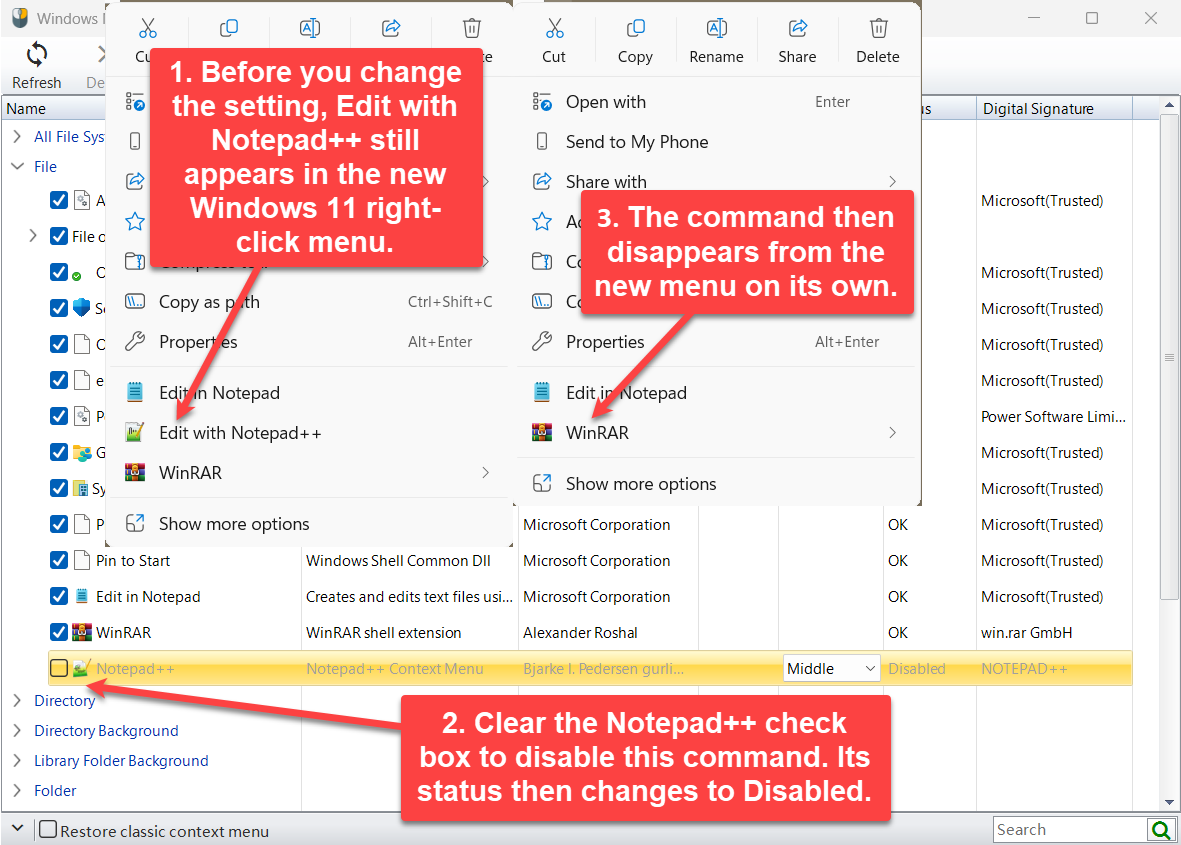
The figure uses Notepad++. Before the change, the Windows 11 new menu still contains Edit with Notepad++. After you clear the Notepad++ check box under File, Status becomes Disabled and that command no longer appears. Commands that stay checked, such as Edit in Notepad and WinRAR, remain.
This is the usual way to disable a right-click command: clear the check box, confirm you do not need it day to day, and only then decide whether to delete it. When you delete, the program recommends that you disable the item first and delete it only after you have confirmed it is invalid.
Some commands that Windows packages cannot be deleted. If the same packaged command appears in more than one place, such as under File and Directory, disabling it applies to that command together. An ordinary shell command affects only the item you are changing.
5. How do you change Item Position?
When a command supports a position, the Item Position column has a drop-down list: Top, Middle, or Bottom. Those are the top, middle, and bottom of the classic right-click menu. A row without this drop-down list does not offer a position setting.
The three positions below use Add to Favorites under File. Every screenshot shows the result on the restored classic menu. On Windows 11, check Restore classic Context Menu first, then compare the menu. These positions describe the classic menu. The Windows 11 new menu does not move in the same way.
5.1 Middle: place it in the middle
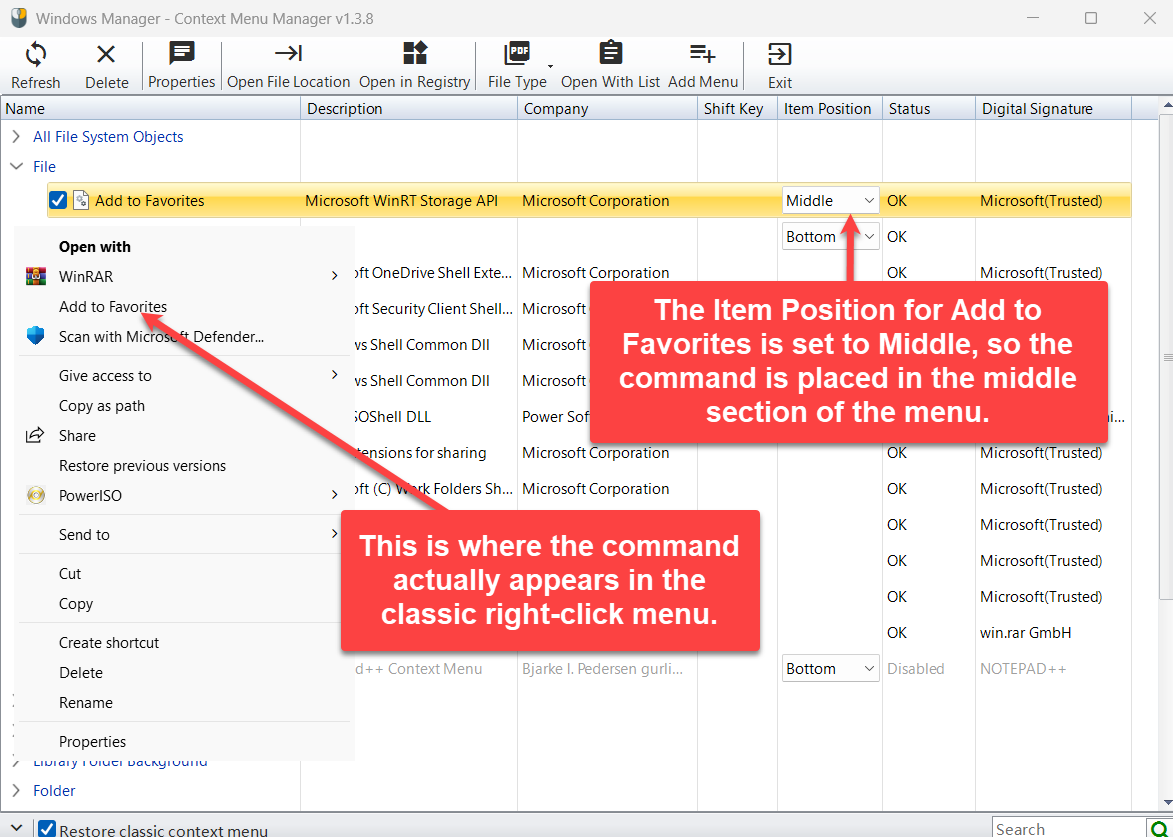
With Item Position set to Middle, Add to Favorites appears in the middle of the classic menu, around Open with and WinRAR, rather than at the very top or the very bottom.
5.2 Top: move it to the top
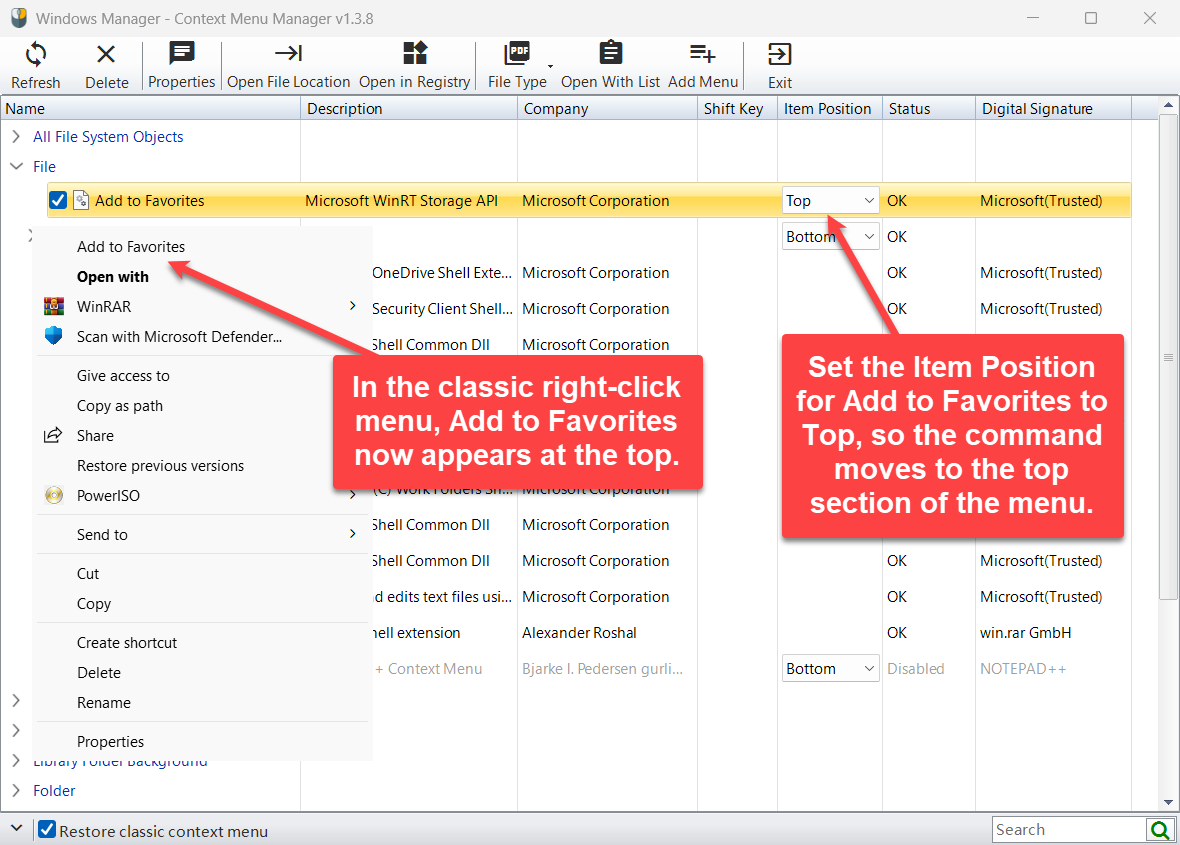
Change the same item to Top and Add to Favorites moves to the top of the classic menu, above Open with.
5.3 Bottom: move it to the bottom
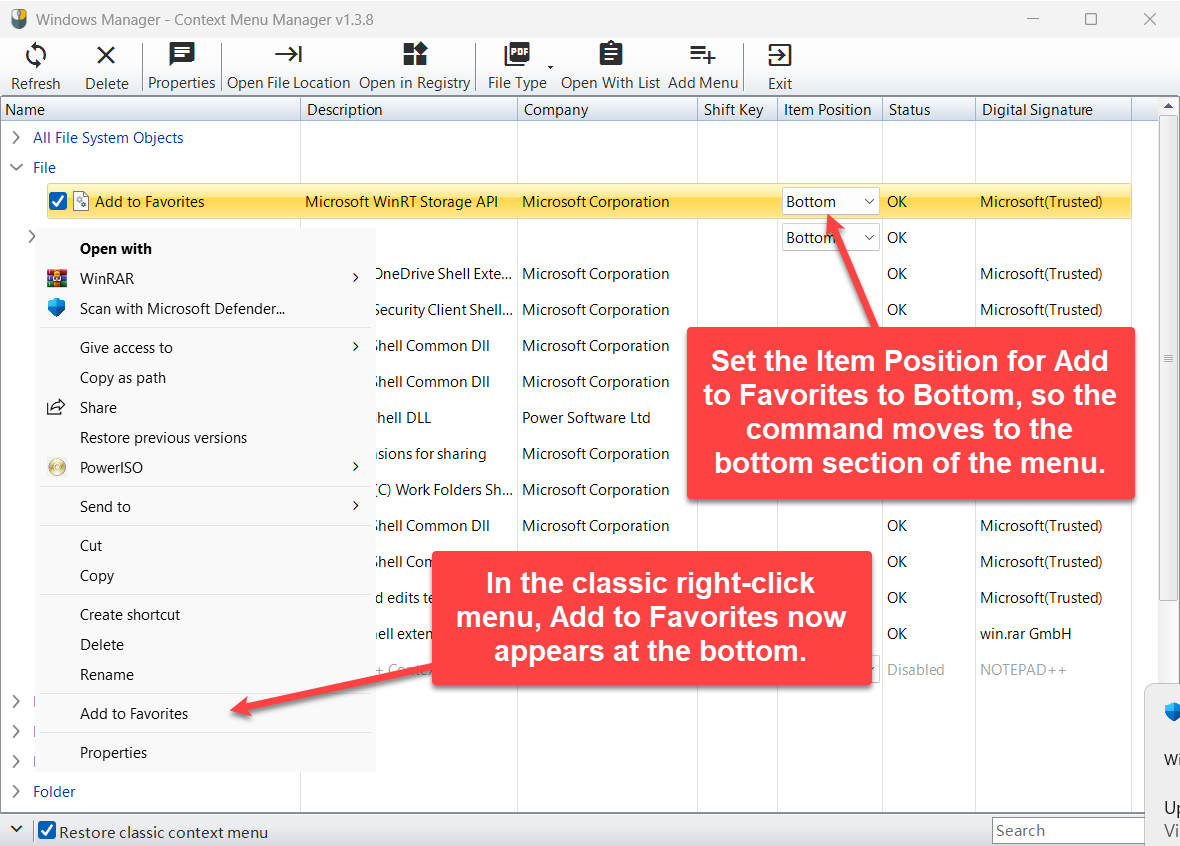
Set it to Bottom and the command drops to the bottom of the classic menu, near Properties. Keep commands you use often at Top, and commands you rarely use at Bottom, so they do not crowd Copy and Delete.
6. What does Shift Key mean?
When Shift Key is Yes, the command appears only while you hold Shift and right-click. Set it to No and the command shows without Shift. Only commands that support this setting have the drop-down list.
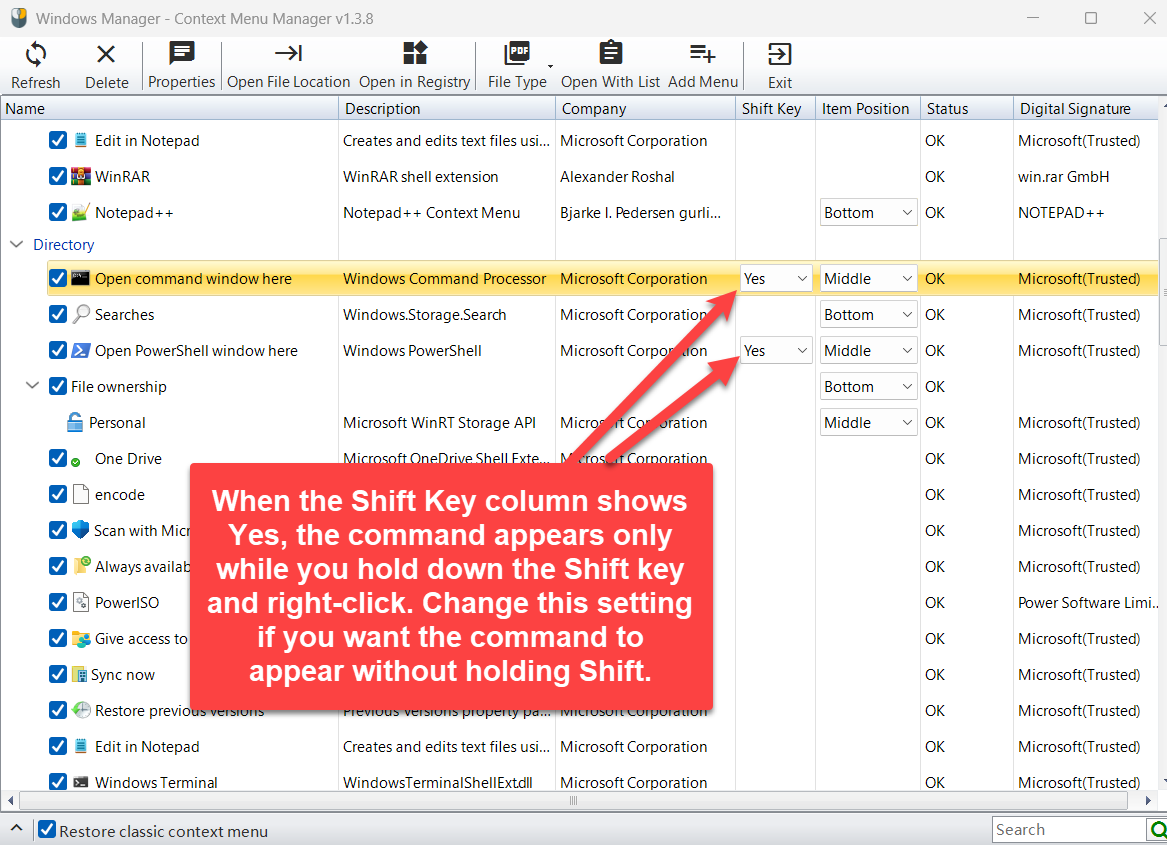
Under Directory, Open command window here and Open PowerShell window here both have Shift Key set to Yes and Item Position set to Middle. A normal right-click does not show them. Hold Shift and right-click, and they appear. To see “Open command window here” or “Open PowerShell window here” without holding Shift, set Shift Key to No.
7. How do you manage the menu for one file type?
File in the main list is the menu shared by every file. To manage only one extension, use File Type → Add. Enter the extension when asked, for example png, jpg, or exe, without a dot. After it is added, a group such as <PNG> Context Menu appears on the left, containing that type’s own commands.
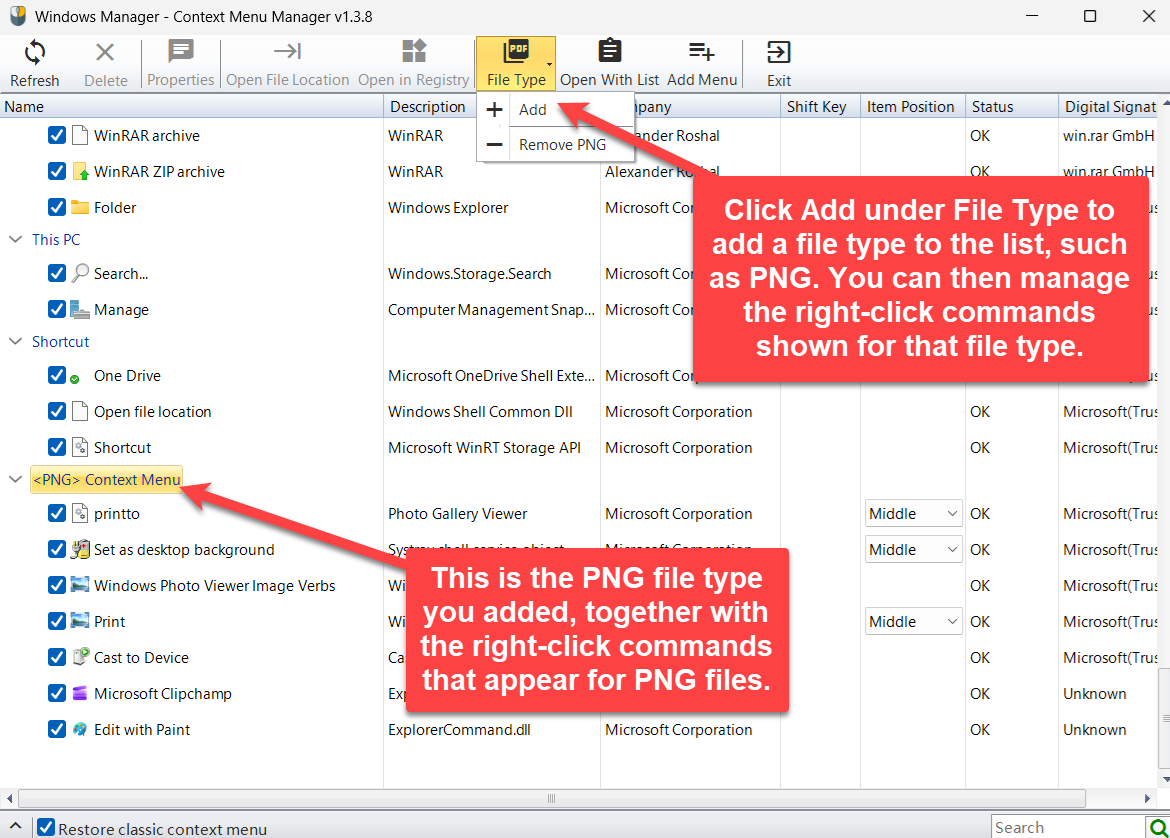
The File Type menu in the figure contains Add, and Remove PNG for a type that was already added. At the bottom of the left list, <PNG> Context Menu shows commands for PNG files, such as printto, Set as desktop background, Print, and Edit with Paint. Check, clear, or change position here the same way as in any other group.
If that extension is already in the list, the program tells you that this file type exists already. When you no longer need the group, use Remove PNG (or the matching extension) on the File Type menu. That only stops this program from showing the group. It does not delete that kind of file.
8. Open With List: tidy Select an app
Click OpenWithList to open a separate window titled Open With List Programs. This list is the programs shown in the “Select an app to open this file” dialog when you open a file of an unknown type. It is not the right-click commands in the main window.
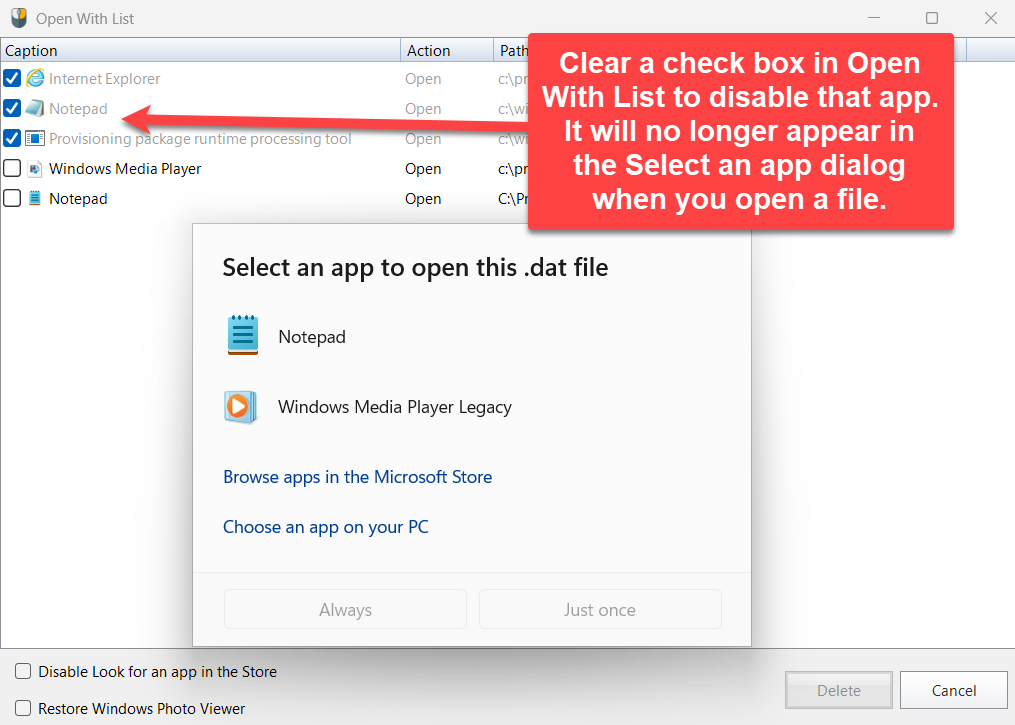
The columns are Caption, Action, and Path. The check box here means the opposite of the main window: checking an app disables it, Status becomes Disabled, and that program no longer appears in the Select an app dialog; clearing the check box enables it again. The lower part of the figure is the dialog for choosing an app to open a .dat file. It still lists the programs that are currently enabled.
Two more options sit at the bottom of the window:
- Disable Look for an app in the Store: when you open a file that has no associated program, Windows no longer offers to look for an app in the Microsoft Store.
- Restore Windows Photo Viewer: restores Windows Photo Viewer so it can appear again in Open with and in default apps.
Select an item and use Delete to remove it. A packaged app from the Store cannot be deleted with this button, so uninstall is left alone. The program asks you to confirm before it deletes.
9. Add Menu: add a right-click command
Click Add Menu to open the add window. The title includes Cascading. There are five tabs: Ribbon Command, Common, Administrator Privilege, Command Group, and Customization. When you finish, click Save. The Ribbon Command page has its own information icon. It explains that you can put commands you use often from the File Explorer ribbon onto the right-click menu, so you do not have to hunt through ribbon tabs.
9.1 Ribbon Command
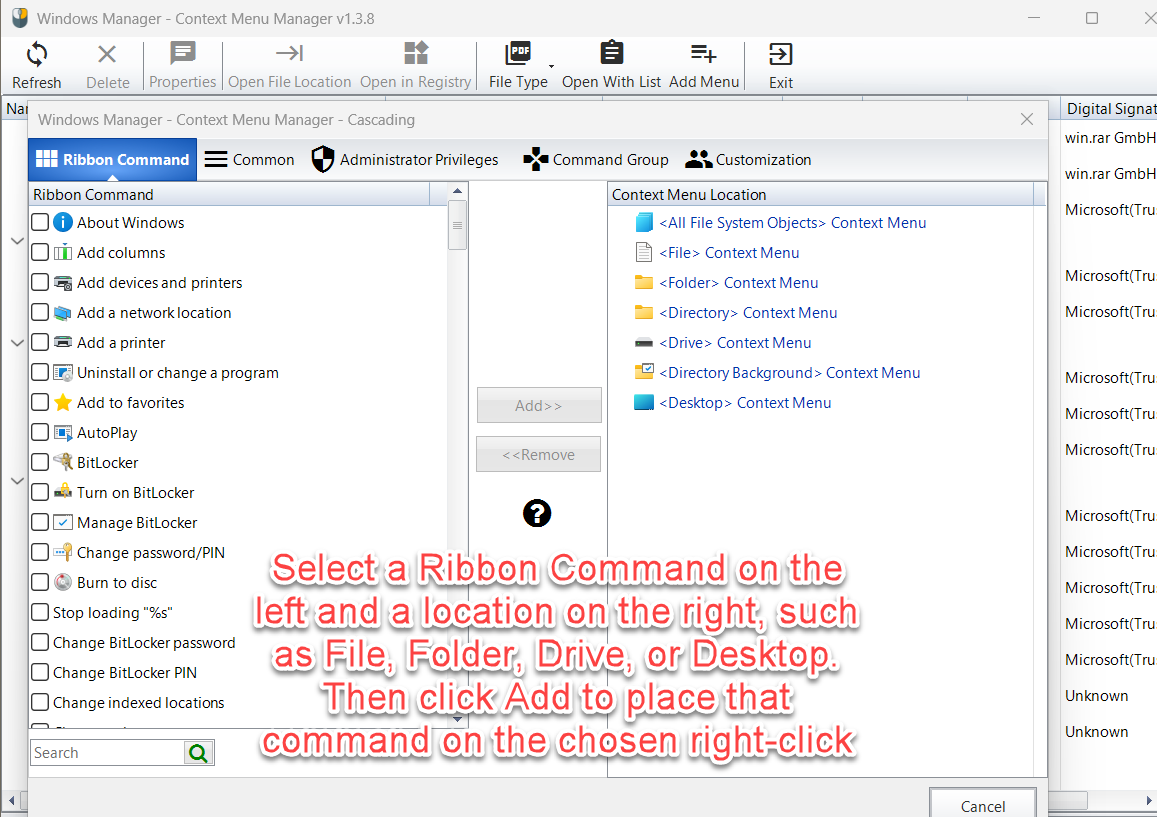
Check one ribbon command on the left, for example Manage BitLocker. On the right, under Context Menu Location, choose where it should appear, such as <File> Context Menu, <Folder> Context Menu, <Directory> Context Menu, <Drive> Context Menu, <Directory Background> Context Menu, or <Desktop> Context Menu. Click Add to put the command in that location. Use Remove to take it back. The search box on the left filters command names.
9.2 Common
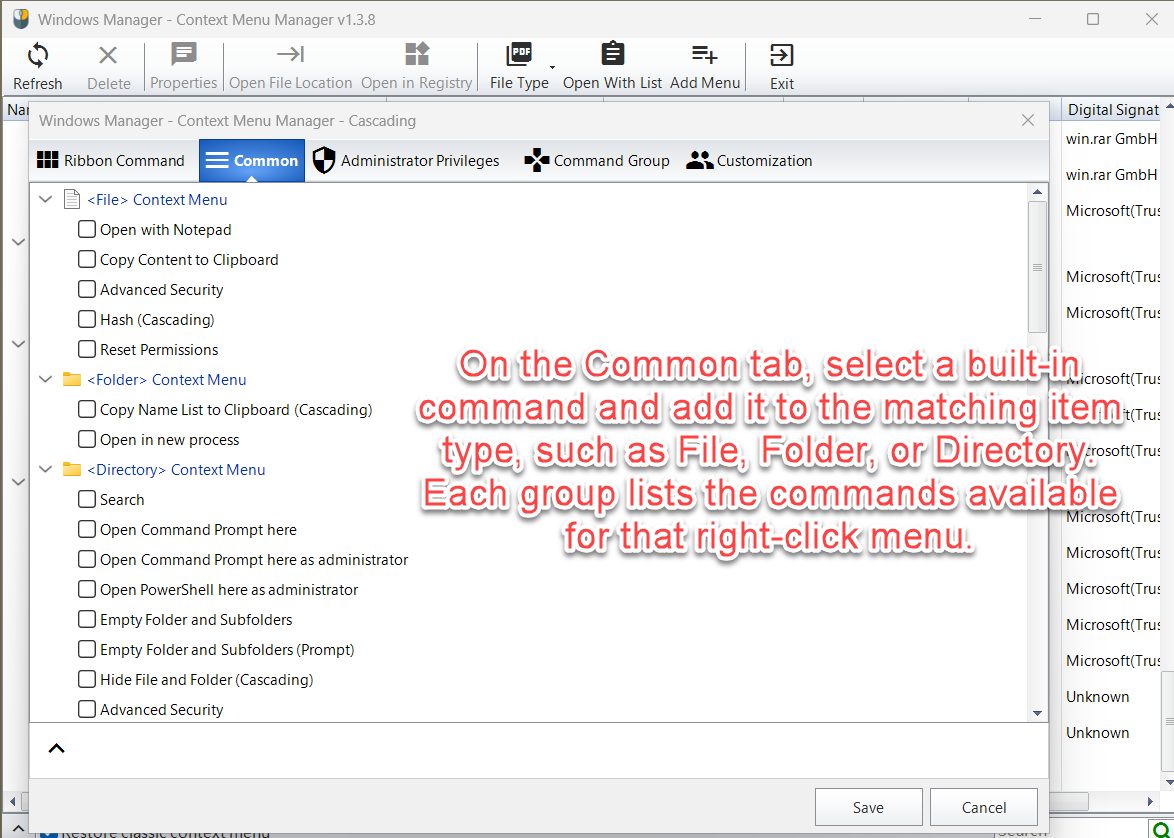
Common groups built-in commands by the menu they belong to. Under File the figure shows Open with Notepad, Copy Content to Clipboard, Hash, and others. Under Folder it shows Copy Name List to Clipboard. Under Directory it shows Search, Open Command Prompt here, Open PowerShell here as administrator, Empty Folder and Subfolders, and others. Check an item to add it to that type’s right-click menu. The same page continues with groups such as Directory Background, Drive, and Desktop. Each group contains only commands that fit that location.
9.3 Administrator Privilege
This tab adds commands that may need administrator rights, and you can switch them back to the system default:
- <File> Context Menu: System Default or Take Ownership.
- <Directory> Context Menu: System Default, Open Command Prompt here as Administrator, or Take Ownership.
- <Drive> Context Menu: System Default or Take Ownership.
9.4 Command Group
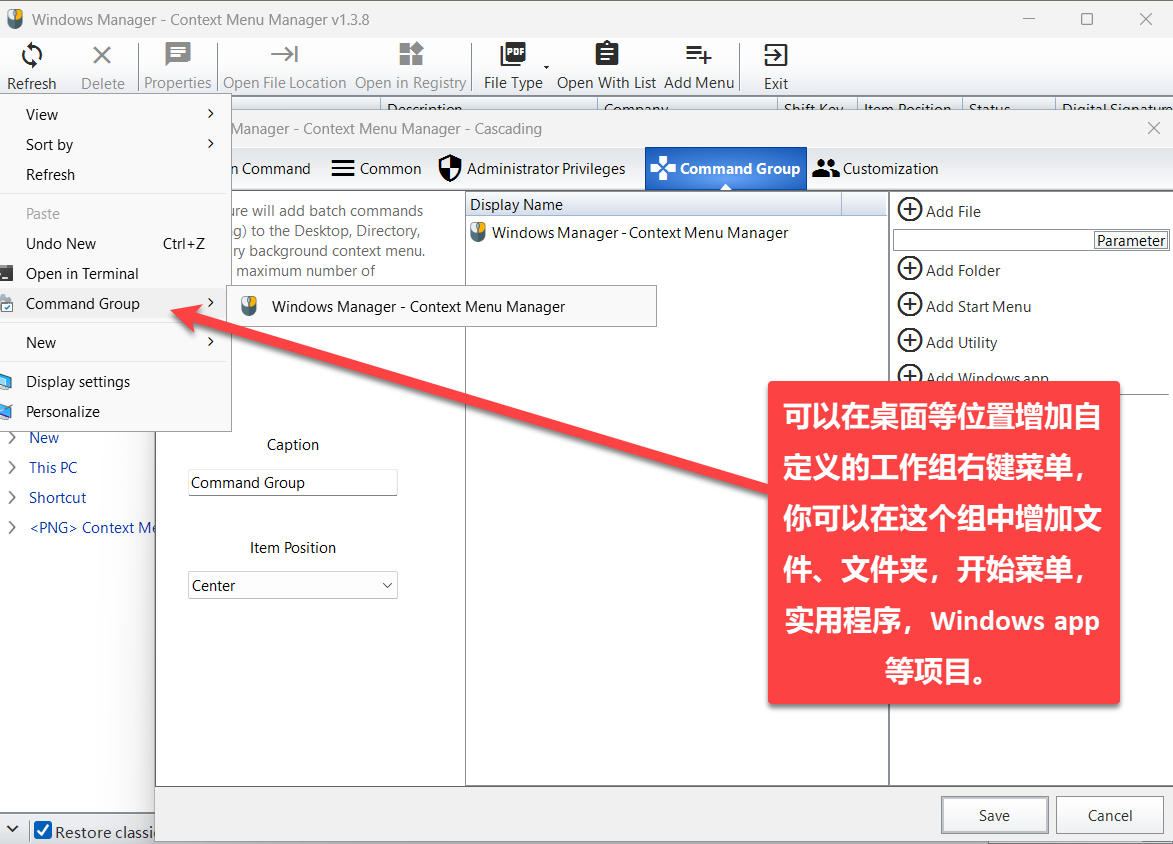
Command Group adds a custom submenu. In the figure the desktop right-click menu contains Command Group, and inside it an item named Windows Manager - Context Menu Manager. On the right you can Add File, Add Folder, Add Start Menu, Add Utility, or Add Windows app, and you can Remove or Remove All. When you add a file you can fill in Parameter. Caption on the left is the submenu name. Item Position can be Top, Center, or Bottom.
This adds the cascading menu to the desktop, directory, and library background right-click menus. The maximum is 17 commands, and separators count toward that limit. Before you save, there must be at least one item, and Caption must be filled in.
9.5 Customization
Customization adds an item of your own. The location can be File, Folder, Directory Background, Drive, or Desktop. The target can run a file or open a URL. Check Press hold the Shift key to show and the item appears only while you hold Shift. On the same page you can also add a chosen folder to the Send To menu and set its display name.
10. How do you confirm the change?
- Return to the main window and click Refresh. Confirm that the check boxes, Status, Shift Key, and Item Position are what you wanted.
- In File Explorer, right-click a file, folder, the desktop, or a drive, and see whether the command disappeared, appeared, or moved.
- If Shift Key for a command is Yes, hold Shift while you right-click during the test.
- On Windows 11, if you still see only the short new menu, confirm that Restore classic Context Menu is checked and that you restarted File Explorer when asked.
11. Notes
- Disable first, and delete only later. Clearing the check box is enough to hide a command. The Delete prompt also recommends that you disable the item first and delete it only after you confirm it is invalid. Packaged system commands cannot be deleted.
- The main list and Open With List use the check box differently. In the main window, a check enables the command. In Open With List, a check disables the program, and clearing the check enables it again.
- Menu position follows the classic menu. Top, Middle, and Bottom in the main list are the top, middle, and bottom of the classic menu. In Command Group the position names are Top, Center, and Bottom. The Windows 11 new menu does not rearrange the same way.
- Not every row can change Shift or position. The drop-down list appears only for commands that support that setting.
- Windows 10 has no “restore classic context menu” check box. It is shown only on Windows 11. After you check it, restart File Explorer when asked.
- Command Group allows at most 17 commands. Separators are included in the count. The program tells you when the limit is reached.
- Do not delete an Unavailable item at once. Unavailable usually means the target file is gone. Disable it first, confirm with Property or Open File Location, and use Open in Registry if you need to look at the key.
- Enter only the extension for a file type. For example png, not .png. Adding the same type again tells you that the file type already exists.
12. Typical workflow
Put the Windows 11 menu back to the classic style, and remove one command you do not use
- Open Context Menu Manager, check Restore classic Context Menu, and restart File Explorer when asked.
- Expand File or Directory on the left and find the command you do not need, for example an item from an archive tool or an editor.
- Clear the check box and confirm that Status becomes Disabled.
- Right-click in File Explorer and confirm that the command is gone and the other commands are still there.
Show “Open command window here” without holding Shift
- Expand Directory.
- Find Open command window here or Open PowerShell window here.
- If Shift Key is Yes, change it to No.
- Right-click a folder without holding Shift and confirm that the command appears. If you want, use Item Position to place it at Top, Middle, or Bottom on the classic menu.
Tidy the menu for only one kind of file
- Click File Type → Add and enter png.
- Under <PNG> Context Menu, clear the commands you do not need.
- Right-click a PNG file and confirm that the menu has changed.
Try it now
A right-click menu is worth tidying once installed software has made it crowded. Restore the Windows 11 classic menu first, then disable unused commands by location. That is safer than deleting them immediately. More features are on the product page.
Try it: Download Windows Manager, open Context Menu Manager, and start with one item type on the left.
