After months or years of use, Windows can develop hard-to-describe glitches: double-clicking a file does nothing, Task Manager shows no CPU data, updates keep failing, or File Explorer opens the wrong place. Running DISM, SFC, and registry checks yourself works—but it is easy to miss a step or run things in the wrong order.
1-Click Fixer in Windows Manager bundles common maintenance into one window. Check the items you want, click Start, and the tool checks each task in turn, repairing only when it finds a problem. Healthy items are skipped with messages like No corruption detected or No further action is required. It is a practical choice after updates, software conflicts, or whenever something feels “off” but you do not want a command-line marathon.
This guide covers the interface, what each of the ten tasks does, how to read the logs, and when to switch to Repair Center for deeper fixes.
1. What can 1-Click Fixer do?
- Common system repairs in one place. Component store (DISM), system files (SFC), WMI repository, system and volume disk checks, file associations, folder and registry permissions, File Explorer / Shell settings—without memorizing commands.
- Detect first, repair when needed. It does not blindly run every command; it reacts to what the checks find.
- Visible progress and results. Active tasks show a progress bar or stage text; finished tasks show a short result in the Result column.
- Session logs you can keep. The expandable Repair Logs panel records a timestamped timeline; logs are also saved to disk for support or your own records.
- Jump to Repair Center. The Repair Center button opens broader, category-based repairs when you need more than the standard bundle.
2. When should you use it?
Typical situations:
- Windows Update failed or the system behaves oddly after an update;
- You suspect corrupted system files (crashes, blue screens, component errors);
- Task Manager, Device Manager, or other WMI-dependent tools show incomplete data;
- EXE, shortcut, or file-type associations misbehave;
- Desktop, Documents, or Downloads report “Access denied” or cannot save files;
- File Explorer default location, Quick Access, or taskbar pins act wrong.
If the issue is narrow (network only, for example), select just that item. When you are unsure, select everything except Detect and repair internet connection (see section 5).
3. How to open 1-Click Fixer
In the Windows Manager main window:
Automation → 1-Click Fixer
Run as administrator—system files, disk checks, and registry permission repairs require elevated rights. Download the trial from the download page if needed.
Before a large repair run, create a restore point in System Protection (also under Automation) so you can roll back if something unexpected happens.
4. Main window layout
The window has three areas:
- Top bar: Title “Automatically fix Windows problems with one click”; ? opens online help (this page).
- Task list: Left column Select the item(s) to execute—checkboxes for each repair; right column Result—progress or outcome. Hover a task name for a detailed tooltip.
- Bottom: Select All, Repair Center, expandable Repair Logs, plus Start and Exit.
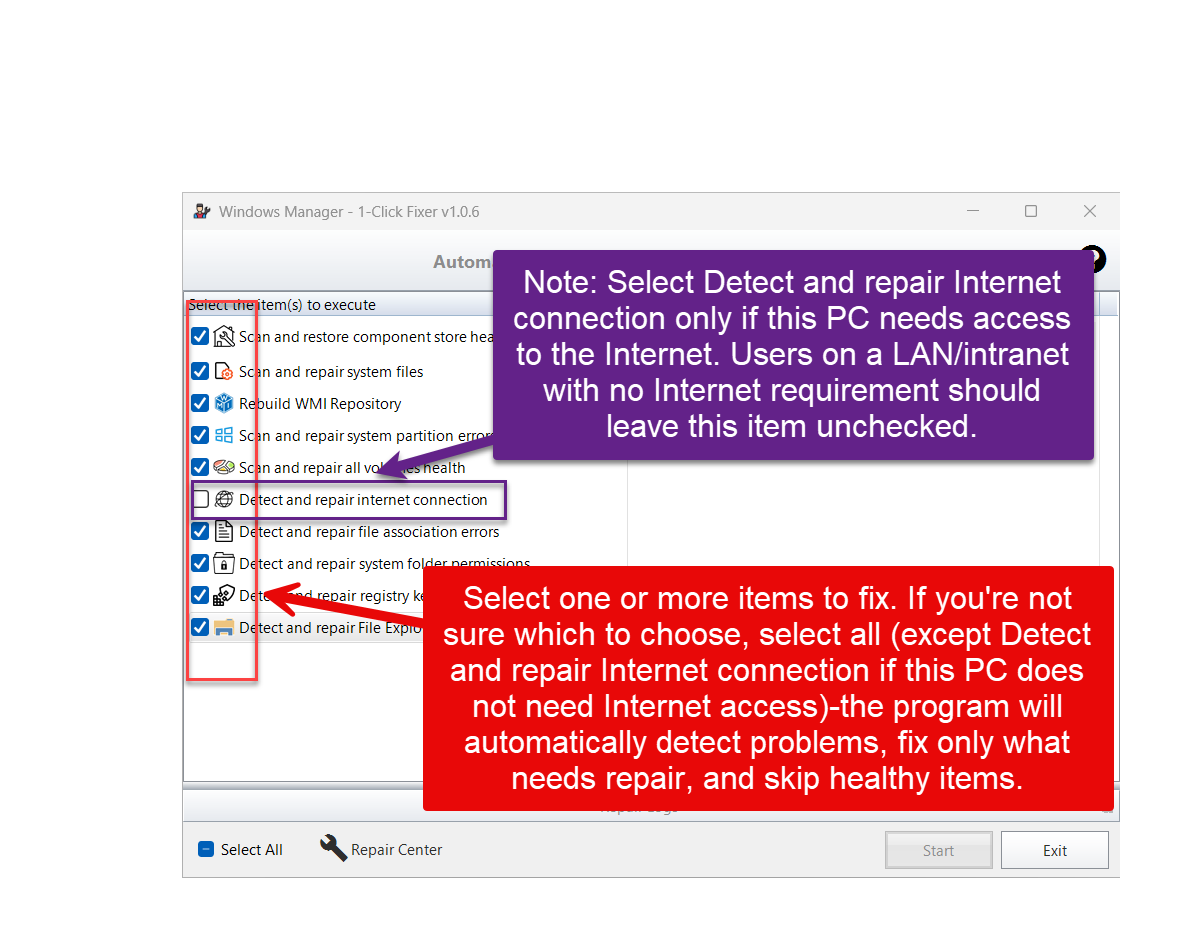
In the screenshot, most items are checked while Detect and repair internet connection is left unchecked on purpose—that task is for PCs that need public Internet access, not pure LAN/intranet machines (see below).
5. Choosing which tasks to run
- Not sure what to pick: Select all items except Detect and repair internet connection. The tool scans each one and repairs only what is broken.
- LAN / intranet only: Do not select Detect and repair internet connection. It pings public DNS servers and tests https://microsoft.com; if it thinks the PC is offline, it may reset proxy, HOSTS, TCP/IP, and related settings—undesirable on networks without Internet or with a corporate proxy.
- After updates or file issues: Enable both Scan and restore component store health and Scan and repair system files, in list order (component store before SFC), matching Microsoft’s recommended sequence.
- Select All: Checks every item; on LAN PCs, manually uncheck the Internet connection task afterward.
Your checkbox choices are remembered for the next session (stored in the current user’s registry settings).
6. Starting repairs and progress
Click Start after selecting tasks. While running:
- The list and buttons are locked so you cannot change selections mid-run;
- The active task shows a progress bar (e.g. SFC Verification 40% complete) or stage text (Checking WMI, Repairing disk);
- A central Repairing… message notes that the full run may take several minutes depending on hardware, disk speed, and how many items you selected—do not close the program until all selected tasks finish.
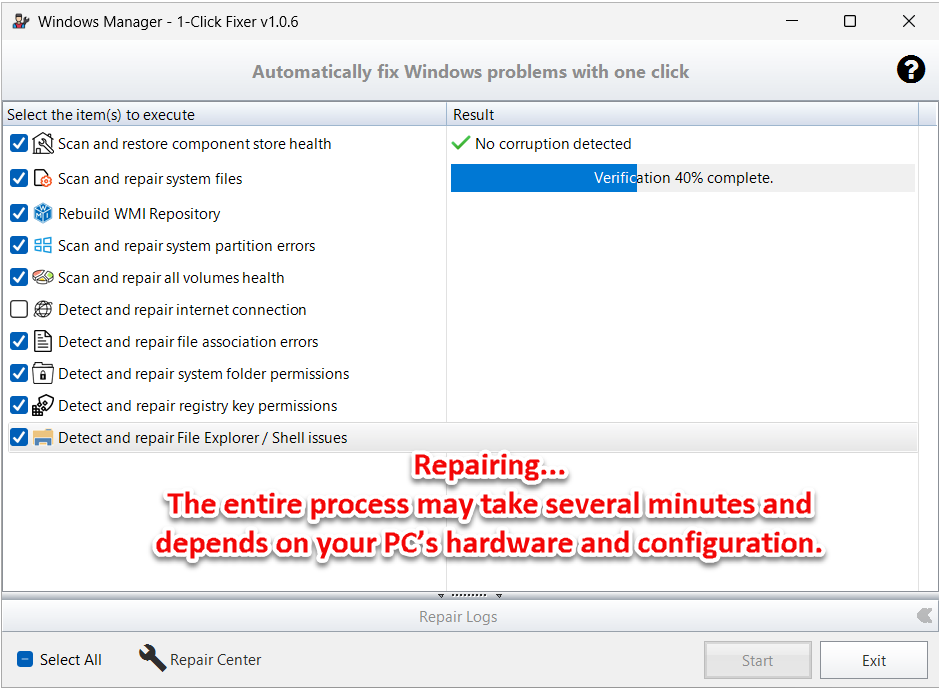
DISM, SFC, and disk checks can take 10–30 minutes or longer on slower disks. A quiet UI does not always mean a hang—watch the progress bar or Repair Logs for updates.
7. Results and repair logs
When all selected tasks finish, the Result column shows a green check and a summary, for example:
- No corruption detected — component store is healthy;
- Repair completed. / Fix completed. — that task’s repair pass finished;
- Repair completed. Please restart. — restart required (common after WMI rebuild);
- No further action is required — disk check found no issues;
- Fixed N file association error(s) — N association problems were repaired.

Expand Repair Logs for timestamped detail—start/end of each task, specific findings (e.g. LaunchTo not set, missing registry keys), and whether a fix was applied. Logs are also written to the program’s Logs folder; Open Folder opens it. Clear only empties the on-screen panel, not saved files.
If a task asks for a restart, save your work and reboot before relying on the fix.
8. The ten repair tasks explained
8.1 Scan and restore component store health
DISM health scan and repair. The component store feeds SFC; if it is corrupt, SFC alone may not be enough. Often 5–20 minutes depending on damage and network.
8.2 Scan and repair system files
System File Checker (SFC)—verifies and replaces protected system files. Run after the component store task. Progress shows verification percentage.
8.3 Rebuild WMI Repository
Checks WMI health; tries light repair first, then full rebuild if needed. Often ends with Please restart. Use when Task Manager lacks performance data or Device Manager is blank.
8.4 Scan and repair system partition errors
Checks the system drive for file system errors and attempts repair. Can take a long time—avoid forced shutdown during the scan.
8.5 Scan and repair all volumes health
Checks every disk volume; repairs unhealthy ones. Complements the system-partition task with full-disk coverage.
8.6 Detect and repair internet connection
Checks adapter status, pings public DNS, tests web access; may reset proxy, HOSTS, DNS cache, Winsock, and more. Only for PCs that need Internet access—skip on LAN/intranet-only systems (section 5).
8.7 Detect and repair file association errors
Tests core associations (EXE, COM, BAT, LNK, etc.) and repairs breaks. Use when double-click or shortcuts fail.
8.8 Detect and repair system folder permissions
Checks Desktop, Documents, Downloads, AppData, and similar folders for permission/ownership issues causing “Access denied.”
8.9 Detect and repair registry key permissions
Checks common HKCU keys (Software, Run, Explorer, etc.) and repairs access problems from migration or malware.
8.10 Detect and repair File Explorer / Shell issues
LaunchTo, Quick Access namespace, folder handlers, IFEO hijacks, taskbar pinned shortcuts, and related Shell settings. Logs list each finding.
9. Important notes
- Administrator rights — required for most tasks.
- Allow time — a full run may take from a few minutes to well over half an hour; use AC power on laptops.
- Restore point — recommended before bulk repairs.
- Internet connection task — skip on intranet/LAN PCs; use caution if your organization relies on a proxy.
- Restart prompts — especially after WMI, reboot promptly.
- Disk checks — offline repairs may be scheduled at next boot; that is normal.
- Keep logs — if problems return, save the session log from the Logs folder for troubleshooting.
10. 1-Click Fixer vs. Repair Center
1-Click Fixer is a curated maintenance bundle—check a set of high-frequency tasks and run them in sequence. Ideal for routine tune-ups or post-update checkups.
Repair Center organizes many more tools by symptom or category when one area keeps failing. Use the Repair Center button in the 1-Click Fixer window to switch.
Suggested order: run 1-Click Cleaner to free space, then 1-Click Fixer; if issues remain, open Repair Center for targeted work.
11. Typical workflows
After a problematic update
- Automation → System Protection → create a restore point (recommended).
- Automation → 1-Click Fixer → enable component store, system files, WMI, file associations, etc. (uncheck Internet on LAN PCs).
- Start → wait for completion → review Result and Repair Logs.
- Restart if prompted.
File or Shell issues only
- Select file associations, folder permissions, registry permissions, and File Explorer / Shell tasks only.
- Start → confirm fixes in the logs.
Still broken after 1-Click Fixer
- Open Repair Center and pick the matching category.
- Keep the session log from the Logs folder for reference or support.
Try it now
1-Click Fixer is a core Automation tool in Windows Manager, alongside Startup Manager and Settings Security. See the product page for the full toolset.
Get started: Download Windows Manager and open Automation → 1-Click Fixer.
